What was added and fixed in each version.
Your existing bookmarks become your workspace. Everything that naturally grows out of tab and bookmark management, in one place.
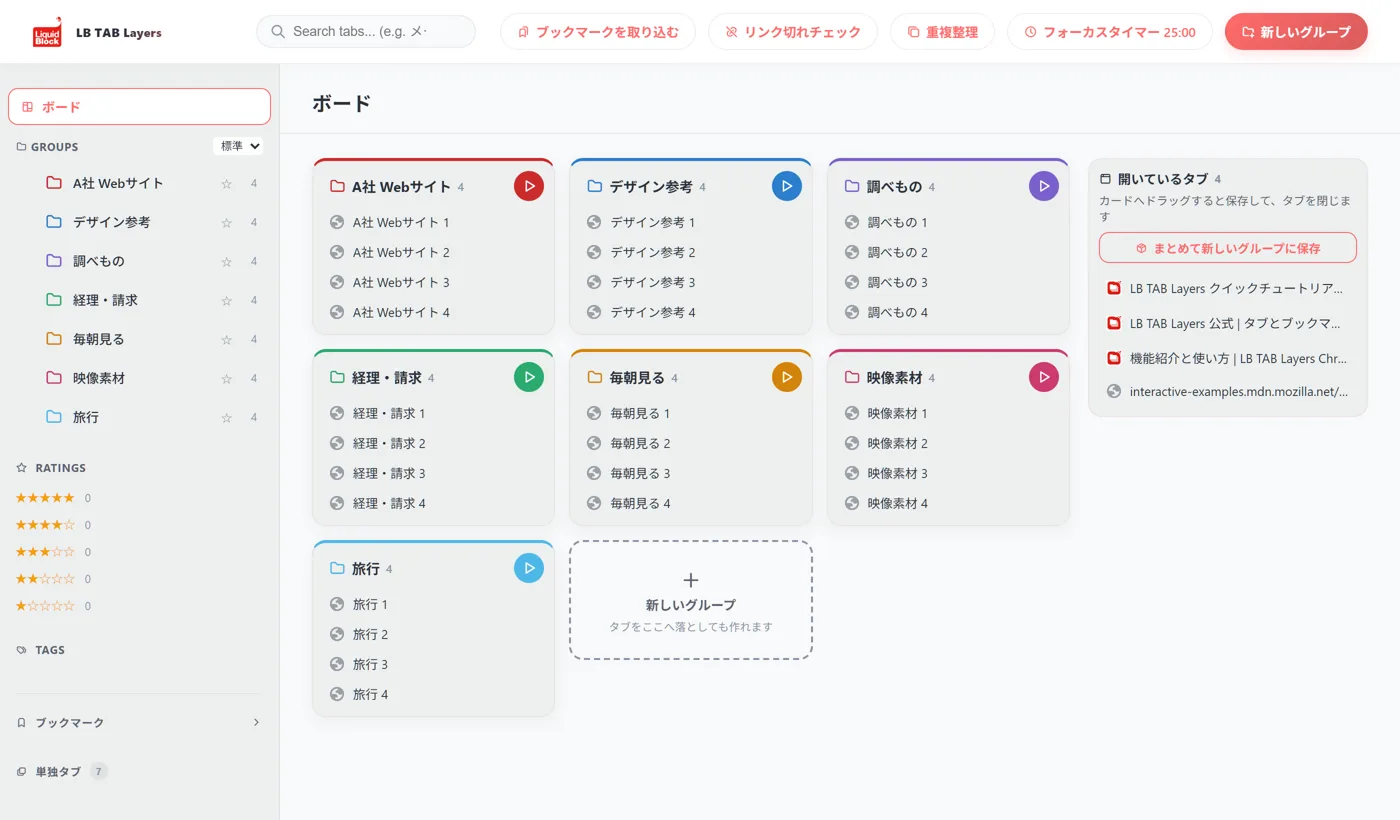
Just pick the folders you use. Nothing is deleted, and you can move them back anytime.
Draw on the page to point things out in online meetings. It fades away after a moment (Alt+Shift+D).
A thin column of tab icons at the edge of the page, so big screens stay wide.
Volume, playback position and pause. Move videos into a mini window and keep working.
A small celebration the first time you use a feature, and a “Next:” hint for what to try.
Seven more languages, including Italian, Dutch, Polish, Turkish, Russian, Simplified Chinese and Hindi.
Tabs are “now”, bookmarks are “later”. Open a project with ▶ and put it away with ■.

Tabs opened with ▶ are gathered into a Chrome tab group with the same name and color as your group. ■ closes that tab group.
Tabs, Bookmarks, History, Notes and Steps sit in a column at the edge of the panel, so the list gets the full height.
Create a group at the top of the list, and save the tab you are on with the button at the bottom. Just pick a group.
Right-click a tab or bookmark to keep the sites you use every day on the pin bar.
Deleting a group or a saved tab moves it to the trash, with an 8-second “Undo”.
A five-minute quick start opens when you install (English, Japanese, Korean and Chinese).
Your tab order and your mode switcher, just where you want them.
Drag open tabs in the side panel to reorder them. The browser’s tab strip follows.
Put it in a column on the left edge if the panel is on the left, or the right edge if it is on the right (choose it in Settings). It can collapse into a slim icon column.
The shortcut (such as Alt+T) now shows next to the logo. Click it to open Chrome’s shortcut settings if another app is in the way.
Closing the last tab opens a new one first, so the Chrome window doesn’t vanish.
The “Delete all duplicates” bar stays on screen while you scroll. A Stop button is available while it runs, and closing it mid-run no longer gets it stuck.
Get a page into a group the moment you think of it — and a heads-up before your tabs pile up.
Drag the address-bar icon or any link onto a group. Folder-view folders accept drops too.
Ctrl+V adds one or many URLs (several lines are fine). The group with the same site is picked for you.
They lead the list wherever you choose a group — paste, “To group”, right-click. Undo is right there after saving.
Select saved tabs and move them to another group at once. The bookmarks move with them.
Advice at 15+ tabs, a warning at 100+, with “Group them” and “Close the others” (adjustable in Settings).
Turn it on in Settings and you’ll be told when a URL is copied, so you can paste it into a group.
Step Tasks + folder view + bulk actions in the Tabs view + thumbnails + a welcome screen built around how you work.
Split work into steps — a task counts only when every step is done. See today’s and this week’s finished tasks, and link them to a project (group). PRO (available during the trial).
Proposals, meeting minutes, monthly reports and more. Choose the number of steps, time and date. Save your own templates, or add a task to Google Calendar.
Browse your saved groups like a file explorer. Drag to move, use the mouse back/forward buttons, and middle-click a folder to open all its tabs at once.
Every open tab, just like the browser’s tab strip. Select several and add them to a new or existing group. Saved tabs appear dimmed.
Only when you turn it on, a small picture of each tab you visit is kept on your computer. Mail, banking and login pages are never captured, and nothing is sent out.
Answer “How do you want to use it?” and your first groups and notes are set up for you.
New notes and layout features already in the store (free to use).
Free-form notes and checklists in their own full-height view. Colors and pinning included.
Give Tabs, Bookmarks or Notes the whole panel, or split it top and bottom with the Combined view — one click either way.
Link a note to the current page (or site) and it opens right up the next time you visit. Select text on a page and right-click to add it to a note.
Choose Auto, Normal or Compact display density to fit smaller screens.
Search your notes, and they are included in the Export backup in Settings.