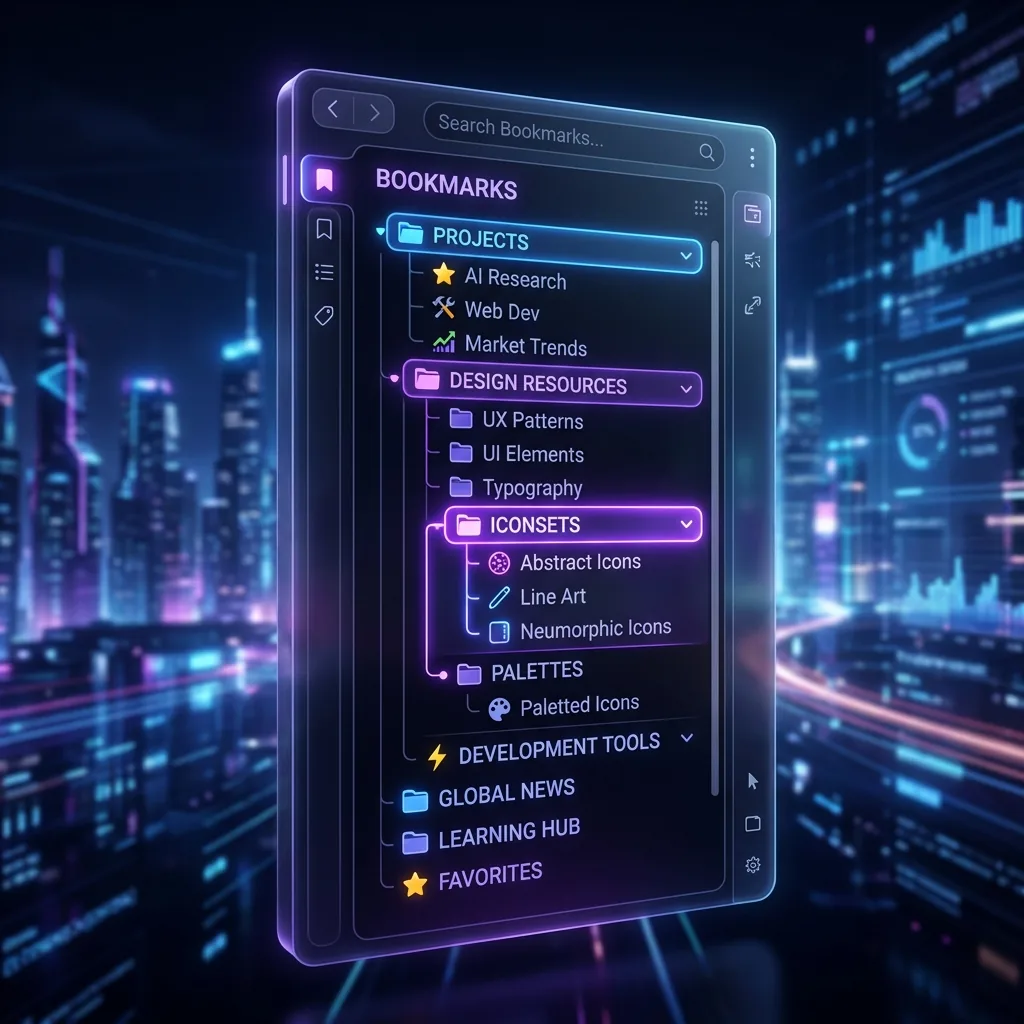
Chrome’s side panel is a column next to the page that can show Chrome’s own tools — such as bookmarks and the reading list — or a panel from an extension. A side panel tab manager stays open while you browse, so you can save, find, open and close tabs without leaving the page. LB TAB Layers opens in the side panel with Alt+T (Option+T on Mac) and keeps your tabs in groups saved as Chrome bookmarks.
What Chrome’s side panel is
The side panel is a resizable column on one side of the browser window. It shares the screen with the page instead of covering it. Chrome uses it for its own tools — bookmarks, the reading list, reading mode and others, depending on your version — and since Chrome 114, extensions can put their own panel there.
That last part matters for tab management. Before the side panel, a tab manager had two places to live: a small popup that closes the moment you click the page, or a separate tab you switch to and away from. Neither lets you look at your tabs and your work at the same time.
How to open, move and resize the side panel
- Open it from the side panel button in the toolbar, or by clicking an extension’s icon if that extension uses the side panel. Many extensions also offer a keyboard shortcut.
- Switch panels with the menu at the top of the panel, which lists Chrome’s tools and the extensions that provide a panel.
- Resize it by dragging its inner edge.
- Move it to the left or right in Chrome’s settings, under Appearance (side panel position). Left suits people who read from the left edge; right keeps it out of the way.
Why a tab manager belongs in the side panel
| Where the tab manager lives | See it while you work? | Typical problem |
|---|---|---|
| Toolbar popup | No — it closes when you click the page | Fine for one action, tiring for sorting |
| Its own tab | No — you switch back and forth | Adds yet another tab |
| The tab bar itself | Yes, but cramped | Tab titles shrink to icons |
| Side panel | Yes | Uses some screen width |
A vertical list also reads better than a horizontal tab bar. Titles have room to be readable, and groups can be nested and collapsed like folders.
What LB TAB Layers shows in the side panel
| Area | What it does |
|---|---|
| Mode bar (top) | Switch between Tabs, Clean, Shots, AI and DB |
| Search and pin bar | Typo-tolerant search over saved tabs; up to 10 favourite sites pinned as icons |
| Group list (middle) | Your groups and subgroups. ▶ opens a group’s tabs, ■ closes them, + saves the current tab |
| Solo Tabs / Today’s History (bottom) | Open tabs not saved anywhere yet, or pages you visited today (Today’s History is PRO) |
Saved tabs that are open and closed look different, so you can tell at a glance what is on screen. You can drag the divider between the group list and the bottom area — see panel layout.
Things you can do without leaving the page
- Save the page you are reading with + on a group, or drag a tab from Solo Tabs onto a group.
- Open something in the background. Middle-click a closed saved tab and it opens next to your current tab without switching to it — like middle-clicking a link. Middle-clicking an open one closes it.
- Switch projects. ■ on one group, ▶ on another. The panel stays where it is while the tabs change.
- Ask about the page. The AI mode can attach the page you are viewing and summarize it or answer questions. With Chrome’s built-in AI, where your Chrome supports it, no API key is needed.
- Glance at the time. The pin bar area includes a clock and a work timer.
How is this different from Chrome’s own bookmarks panel?
Chrome can already show your bookmarks in the side panel, so it is fair to ask what a tab manager adds. The bookmarks panel is a list of saved links. A tab manager also knows about your open tabs:
- It shows which saved pages are open right now and which are closed.
- It can open or close a whole folder of tabs in one click (▶ and ■), instead of one link at a time.
- It lists the open tabs you haven’t saved anywhere yet (Solo Tabs), so you can sort them before closing the window.
- It adds things bookmarks don’t have, such as notes on a saved tab and search that tolerates typos.
Because LB TAB Layers stores its groups as bookmark folders, the two don’t compete: a group you create in the panel also shows up in Chrome’s bookmarks panel and bookmark manager, inside the “LB TAB Layers” folder.
Side panel or overlay?
LB TAB Layers has two display modes, set in the settings:
- Fixed (Standard Side Panel) — Chrome’s side panel. The page gets narrower to make room. This is the default and is free.
- Overlay — the panel slides over the page and hides again with a button, so the page keeps its full width. Overlay is a PRO feature (included in the free trial).
On a wide monitor, the standard side panel is usually the better choice: you can leave it open all day. On a small laptop screen, overlay saves width.
Get started
- Install LB TAB Layers from the Chrome Web Store.
- Press Alt+T (Option+T on Mac) to open it in the side panel. To change the key, go to
chrome://extensions/shortcuts— see extension keyboard shortcuts. - Create a group with the New Group button and drag a few tabs into it. A Chrome bookmark folder with the same name appears at the same time.
- Leave the panel open while you work, and close tabs with ■ instead of the tab bar’s ×.
Frequently asked questions
Q. Can extensions use Chrome’s side panel?
Yes. Since Chrome 114, extensions can show their own panel in the side panel. You pick it from the menu at the top of the panel or by clicking the extension’s icon.
Q. How do I open LB TAB Layers in the side panel?
Press Alt+T (Option+T on Mac), or click the extension’s icon in the toolbar. You can change the shortcut at chrome://extensions/shortcuts.
Q. Can I move the side panel to the left?
Yes. Chrome lets you choose whether the side panel appears on the left or right in its Appearance settings.
Q. Does a side panel tab manager slow Chrome down?
The panel itself is a single page, much lighter than a few extra tabs. A tab manager usually reduces memory use overall, because it makes closing tabs safe.
▶ See it in action
Managing bookmarks and tabs together in the sidebar. (The video shows the Japanese UI.)
Your tabs, right next to your work.
Open LB TAB Layers in the side panel with Alt+T. Try every feature free for 3 months.
Add to Chrome — it's free →