
Claude in Chrome is Anthropic’s browser extension for Google Chrome. Claude reads the page you have open, then clicks, types, navigates and fills in forms to work through a task with you. It is available on paid plans (Pro, Max, Ultra, Team and Enterprise) and runs in Google Chrome; Anthropic says other Chromium-based browsers and mobile devices are not supported (as of November 2026). To install it, click Add to Chrome on its Chrome Web Store page and sign in with your Claude account. Anthropic strongly advises against using it for financial accounts, legal documents, medical information or work accounts with sensitive data.
“Claude in Chrome” is the Chrome extension from Anthropic, the company that makes Claude. The difference from a regular chat is that Claude doesn’t just answer — it can work on the page for you: reading it, clicking, typing and filling in forms.
This guide covers what it does, who can use it, how to install it and what to check before you let it act. Everything here comes from Anthropic’s own pages (the product page, the help center, the pricing page and the Chrome Web Store listing), checked on November 23, 2026. Plans and requirements change, so look at the official pages listed near the end before you install.
What Claude in Chrome is
Anthropic’s help center describes Claude in Chrome as a browser extension that lets Claude read, click and navigate websites alongside you. The product page puts it this way: Claude reads the page you’re signed in to, then clicks, types and fills forms while you decide what happens next.
You can direct it from three places:
- The Chrome side panel — for work on the page in front of you. Click the Claude icon in the Chrome toolbar and the panel opens next to the page; it stays visible while you browse
- The Claude desktop app (Mac or Windows) — when the browser is one step in a longer job that also touches your files and other tools. In the app, it is turned on under Settings → Customize → Connectors → Claude in Chrome → Configure, and it is off by default in each conversation, so you switch it on from the Connectors drop-down in the chat
- Claude Code — for developers testing the site they are building
In the Chrome Web Store, the extension is listed simply as “Claude”, and its overview starts with “Claude in Chrome.” The listing carries the badge “Created by the owner of the listed website,” and the developer is Anthropic. If you have seen it called “Claude for Chrome” or “the Claude Chrome extension,” this is the same extension.
The side panel now works like the rest of Claude
According to the help center, on Max, Ultra and Team plans, on Pro as the rollout reaches you, and on Enterprise where an admin has turned it on, the side panel runs as a Claude Cowork session — the same Claude you use on desktop, web and mobile. Side panel conversations are saved to your history and can be picked up on the web, in the desktop app or on mobile, and your skills, plugins and connectors work there too. If you prefer the previous panel, click the three dots (⋮) at the top right of the panel and choose “Switch back to classic.” Recorded workflows are available only in the classic side panel.
💡 The help center also mentions a browser built into the Claude desktop app, with nothing to install, rolling out gradually. This article is about the extension you add to your own Chrome.
Who can use it: plans and requirements (November 2026)
The short version: if you are on a paid Claude plan and use Google Chrome on a computer, you can install it. With a work account, your admin’s settings also matter.
| Item | What Anthropic’s pages say |
|---|---|
| Plans | Paid plans: Pro, Max, Ultra, Team and Enterprise. The comparison table on the pricing page shows “No” for Free |
| Browser | Google Chrome. The help center and the Store listing say it is not supported on other Chromium-based browsers or on mobile devices |
| Account | Sign in with your Claude account |
| Team and Enterprise | Admins decide whether the extension is enabled for the organization and can restrict sites with allowlists and blocklists. On Enterprise, the new side panel needs an owner to enable Claude in Chrome and Cowork in the cloud; until then, the classic side panel is used |
| Usage | It counts against the same plan limits as Claude and Claude Code. Browser work is more compute-intensive than regular chats, so expect it to use more of your limit, and long-running tasks can use more still |
One nuance for developers: the Claude Code documentation says its Chrome integration works with Google Chrome and Microsoft Edge, and that Claude Code also detects the extension in other Chromium-based browsers such as Brave, Arc, Vivaldi and Opera (it isn’t supported in WSL). For everyday use in the side panel, plan on Google Chrome, as the help center and the Store listing say.
Plan prices aren’t listed here because they change. Check Anthropic’s pricing page for the current details.
How to install Claude in Chrome
These are the steps from Anthropic’s help center, with the button names Chrome shows.
Open the “Claude” listing in the Chrome Web Store
Use Google Chrome. The Add to Chrome button on Anthropic’s product page (claude.com/claude-in-chrome) takes you straight to the right listing. On the listing, check that the developer is Anthropic.
Click “Add to Chrome”
Chrome shows the permissions the extension needs. To approve them, click Add extension.
Sign in with your Claude account
When prompted, sign in with the Claude account that has your paid plan.
Pin it to the toolbar
Click the puzzle-piece Extensions icon, then the pin (thumbtack) next to “Claude.” The Claude icon now sits in your Chrome toolbar.
Grant permissions and open the side panel
Grant the permissions Claude asks for, then click the Claude icon in the toolbar. The side panel opens next to the page; describe what you want to get done.
The permissions it asks for
The help center lists every permission the extension requests and why. The main ones:
- scripting — to read the text on web pages
- debugger — to actually control the browser: clicking buttons, typing text and taking screenshots
- tabs — to open, close and switch between tabs while it works
- tabGroups — to put the tabs Claude opens into a separate group with a different color, so you can tell them apart from your own
- alarms — to run scheduled tasks at the times you choose
- downloads — to download files from websites and open them when you ask it to
- notifications — to let you know when a task is finished or needs you
It’s worth reading the full list before you install. If you want a general way to judge what an extension asks for, see what each permission a tab manager extension requests is for.
If it won’t install or doesn’t work
Anthropic’s troubleshooting page suggests these checks:
- Won’t install or sign in — confirm your paid plan is active; on Team or Enterprise, ask your admin whether the extension is enabled; clear your browser cache and cookies for claude.ai; sign out of your Claude account and back in
- Actions don’t work correctly — update Chrome to the latest version; turn off other extensions that might interfere with the page; refresh the page and start the task again
- Claude can’t see the page — refresh, make sure the extension is enabled, and check that you have granted permission for the current site. Pages with heavy JavaScript may need a moment to load
- Claude can’t open a site — the site may need your permission, may be in a category blocked by default, or may be restricted by your admin
What Claude in Chrome can do
The main capabilities described on the help center and the product page:
- Read and act on pages — read, click, type, navigate and fill in forms
- Work across several tabs — drag tabs into Claude’s tab group, and Claude can view and work with all of them at once
- Scheduled tasks — run browser tasks daily, weekly, monthly or annually, set from the clock icon at the top right of the panel
- Background work — Claude keeps working when you switch tabs, as long as Chrome is open. Turn on notifications to hear when it needs permission or finishes
- Shortcuts — save a prompt that works well as a shortcut and call it up by typing “/” in the chat
- Show, don’t describe — upload an image or capture a screenshot of part of the screen to point Claude to the exact button or field
- Familiar apps — the help center says Claude has built-in knowledge of Slack, Google Calendar, Gmail, Google Docs and GitHub, so short requests like “schedule a meeting” work without step-by-step instructions
- For developers — Claude can read console output (errors, network requests and DOM state), and with Claude Code you get a build, test and fix loop in the browser
For the side panel, the help center suggests in-the-moment tasks such as:
- Summarizing or comparing what’s open across your tabs
- Pulling details off a page into a note, a document or a form
- Walking through a task on a site step by step while you watch
Approval modes: decide how much Claude does on its own
How often should Claude stop and ask you? The permissions guide describes three modes, chosen from the drop-down menu on the chat input.
| Mode | What happens |
|---|---|
| Manually approve (Manual) | Formerly “Ask before acting.” Claude asks before each action, and you choose Allow all for this website, Allow this time only or Deny. In the classic side panel, Claude first shows a plan that you approve with Approve plan or send back with Make changes |
| Automatically approve (Auto) | Claude keeps working, reviews each action for safety, blocks anything it judges unsafe and pauses to ask you when needed. If it keeps running into blocks, it goes back to asking at each step |
| Skip all approvals (Skip) | Formerly “Act without asking.” Claude doesn’t pause to ask, and nothing checks its actions automatically. Anthropic says to use it only when you completely trust every action, connector, file and app involved |
The new (Cowork) side panel starts in “Automatically approve,” and if you switch modes, it keeps your choice for future sessions. If you’d rather check every step, switch to “Manually approve.” For work with real consequences — money, messages sent as you, important files — Anthropic recommends staying close and reviewing what Claude does, or switching back to “Manually approve.”
Site permissions
On some sites, Claude needs approval for every action. There, a New permissions required prompt offers Allow this action (one action only, which Anthropic calls the safest option), Always allow actions on this site (only for sites you completely trust) or Decline. Even with ongoing access, Claude still asks before downloading a file, entering potentially sensitive information or granting authorizations. To review or revoke sites, click the three dots in the panel, choose Extension settings, and look under Your approved sites.
Actions that need your permission in every mode
- Changing permission settings
- Granting authorizations
- Entering potentially sensitive information into websites
- Permanent deletions, such as emptying the trash or deleting emails, files or messages
Actions Claude won’t take, whatever you allow
- Making purchases or financial transactions
- Creating accounts
- Handling sensitive credit card or ID data
- Downloading files from untrusted sources
- Giving investment or financial advice, or executing trades
- Modifying system files
- Following instructions found in emails or web content
Before you start: Anthropic’s safety guidance
The help center asks you to read “Use Claude in Chrome safely” before you begin. It says plainly that the extension has safety measures but still carries risk. Four points stand out.
1. The biggest risk is prompt injection
Prompt injection means instructions hidden in a web page, an email or a document that try to make an AI do something you didn’t ask for. Anthropic’s example is an ordinary-looking to-do list or email with invisible text telling Claude to collect your bank statements and paste them into a document.
To counter this, one safety check screens incoming content for injection attempts, and another checks every action before it runs; flagged actions are blocked or paused for your approval. Anthropic still states that the risk is not zero.
2. What’s on screen becomes part of the conversation
To see a page, Claude takes screenshots of the tabs it is working in, so whatever is visible there becomes part of the conversation. Side panel sessions are also saved to your history. The automatic safety check can see the latest screenshot, and Anthropic can keep a copy of it in its record of that check.
That’s why Anthropic recommends not opening the side panel on pages that show information you don’t want stored with the session.
3. Habits Anthropic recommends
- Start with sites you trust; avoid unfamiliar sites and sites full of content from unknown users
- Use a separate browser profile that isn’t signed in to sensitive accounts such as banking, healthcare or government services (if you haven’t set one up, here is how to keep work and personal browsing in separate Chrome profiles)
- Read what Claude proposes before you approve it, especially on sites you haven’t used it on before
- Start with simple tasks like research or filling in a form
- Write specific prompts so Claude doesn’t do things you didn’t intend
- If Claude suddenly talks about something unrelated, opens unexpected sites or asks for sensitive information, stop the task right away and report it through the in-chat feedback
4. What Anthropic strongly advises against
- Managing financial accounts or investments
- Handling legal documents or contracts
- Processing medical or health information
- Using work accounts with sensitive company data
- Using sites that contain other people’s personal information
The product page adds: avoid banking, health records and anything involving credentials. Claude can’t access adult content sites or known pirated content sites, and it asks for permission before accessing financial sites (the troubleshooting page lists financial services, banking, investment platforms and cryptocurrency exchanges among the categories blocked by default).
One more point that matters: Anthropic states that you remain responsible for the actions Claude takes on your behalf — content published and messages sent, purchases or financial transactions, data accessed or changed, and following each site’s terms of service, including any limits on automated access.
Checklist before you install
- You are on a paid plan (Pro, Max, Ultra, Team or Enterprise)
- You use Google Chrome on a computer
- For a work account: your admin has enabled it, and your company’s rules allow it
- You have read Anthropic’s “Use Claude in Chrome safely” page
- You have a separate Chrome profile that isn’t signed in to your important accounts
- Your first task is a simple one on a site you trust
- You have chosen an approval mode — “Manually approve” is a calm way to start
Anthropic’s official pages
- Claude in Chrome — product page
- Get started with Claude in Chrome — Claude Help Center
- Use Claude in Chrome safely — Claude Help Center
- Claude in Chrome permissions guide — Claude Help Center
- Claude in Chrome troubleshooting — Claude Help Center
- Claude — Chrome Web Store listing
- Plans & pricing — Claude
- Use Claude Code with Chrome — Claude Code Docs
After the task: put leftover tabs away by project
Last, a word on tidying up once you’re using it. According to the help center, Claude opens, closes and switches tabs as it works, and the tabs it opens are gathered in a separate tab group with a different color.
After a research or comparison task, some of those tabs may still be open. Sorting them into two piles keeps things clear:
- Pages you’ll want again — bookmark them, then close them. Use a folder named for the job, such as “Client A quote” or “Moving house”
- Pages you’re done with — just close them. Anthropic’s troubleshooting page also suggests closing unnecessary tabs when things slow down
Chrome’s tab groups are good for what is open right now; for sets of pages you close and come back to later, see Chrome tab groups vs. a tab manager extension.
LB TAB Layers, the extension behind this blog, does this “put it away by project” step in the Chrome side panel. It saves your open tabs as project groups in Chrome bookmarks, opens a whole group with ▶ and closes it with ■. Closing doesn’t delete anything — the bookmarks stay.
- In the Tabs view, Select tabs to put into a folder lets you pick only the tabs you want to keep and put them into a project group
- Group all into a new group gathers the tabs you haven’t saved yet into one group
- For pages you’ll file later, press Ctrl+Shift+S to drop them into 📥 Sort later
It’s free to add to Chrome (the free version holds up to 5 groups). If your tab bar is already overflowing, see how to fix too many open tabs in Chrome without losing anything.
LB TAB Layers is a separate product made by a different company from Anthropic. It is not integrated with Claude in Chrome and is not endorsed by Anthropic. We mention it as a tool for putting away, by project, the tabs left over after you hand a task to an AI.
Frequently asked questions
Q. Is Claude in Chrome free?
Anthropic’s pages say it is available on paid plans (Pro, Max, Ultra, Team and Enterprise), and the comparison table on the pricing page shows “No” for the Free plan (as of November 2026). Prices change, so check Anthropic’s pricing page.
Q. Does Claude in Chrome work in Edge, Brave or on my phone?
The help center and the Chrome Web Store listing say it is not supported on other Chromium-based browsers or on mobile devices. The Claude Code documentation says its Chrome integration works with Google Chrome and Microsoft Edge and also detects the extension in other Chromium-based browsers, but for everyday use in the side panel, plan on Google Chrome.
Q. I installed it but can’t sign in. What should I check?
Anthropic’s troubleshooting page suggests confirming that your paid plan is active, asking your admin whether the extension is enabled if you are on Team or Enterprise, clearing your browser cache and cookies for claude.ai, and signing out of your Claude account and back in.
Q. Can Claude in Chrome make purchases or handle my bank account?
The permissions guide lists purchases and financial transactions among the actions Claude won’t take, whatever permissions you give. The product page also says purchases, financial actions and anything you can’t undo wait for you. Anthropic strongly advises against using it to manage financial accounts or investments.
Q. What is the difference between “Manually approve” and “Automatically approve”?
In “Manually approve,” Claude asks before each action. In “Automatically approve,” Claude keeps working, reviews each action for safety, blocks anything it judges unsafe and pauses to ask you when needed. The new (Cowork) side panel starts in “Automatically approve,” and it keeps whichever mode you switch to.
Q. What can Claude see while it works?
Claude takes screenshots of the tabs it is working in, so whatever is visible in those tabs becomes part of the conversation, and side panel sessions are saved to your history. Anthropic recommends not opening the side panel on pages showing information you don’t want stored, and using a separate browser profile without access to sensitive accounts.
See it in action
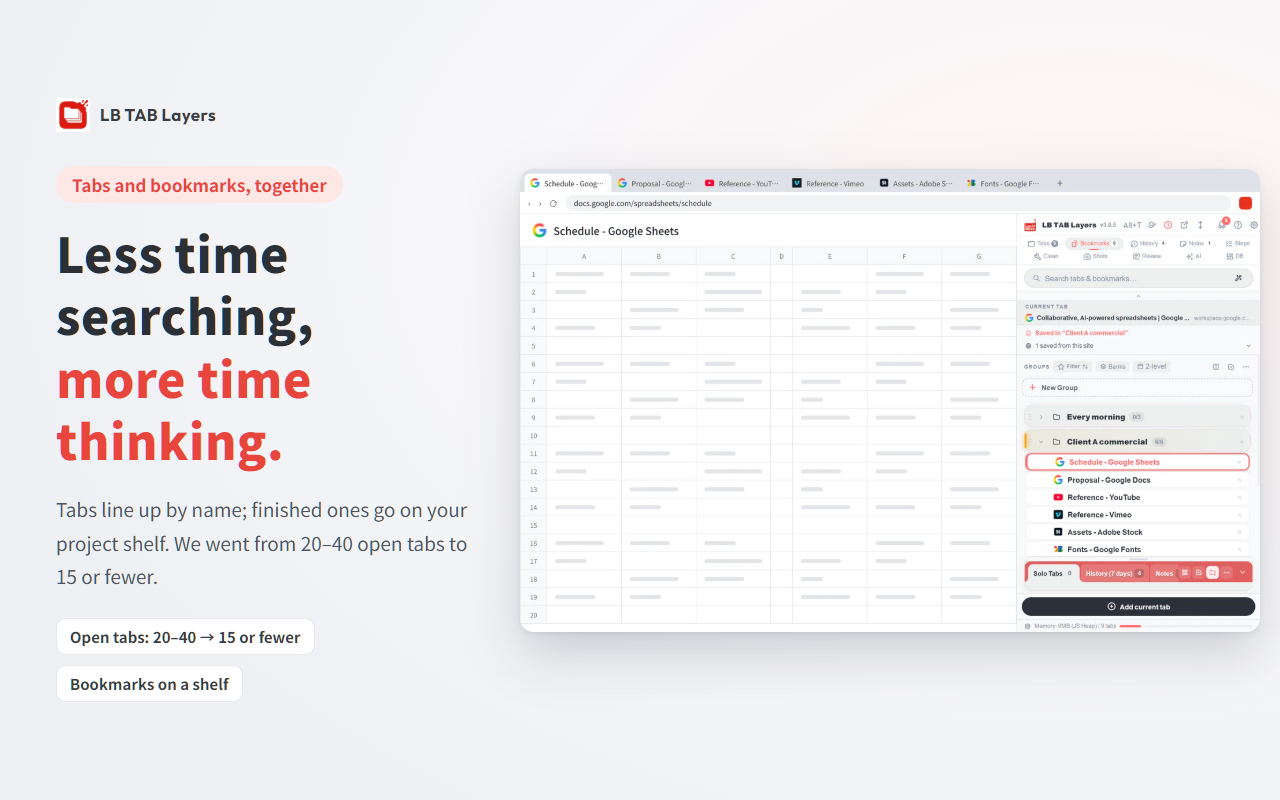
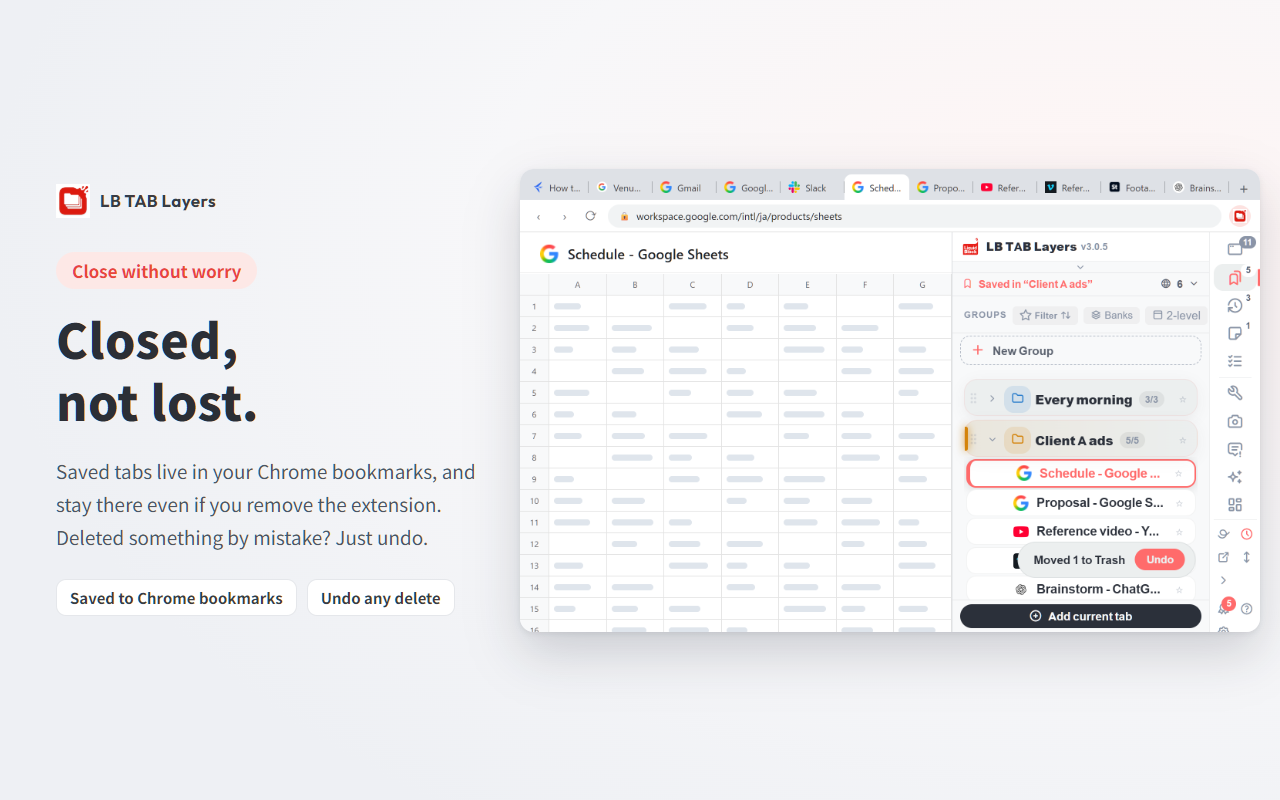
After Claude finishes, keep the tabs by project.
Put the pages you want to keep into groups, open them with ▶ and close them with ■. No account needed, saved as Chrome bookmarks.
Add to Chrome — it's free →