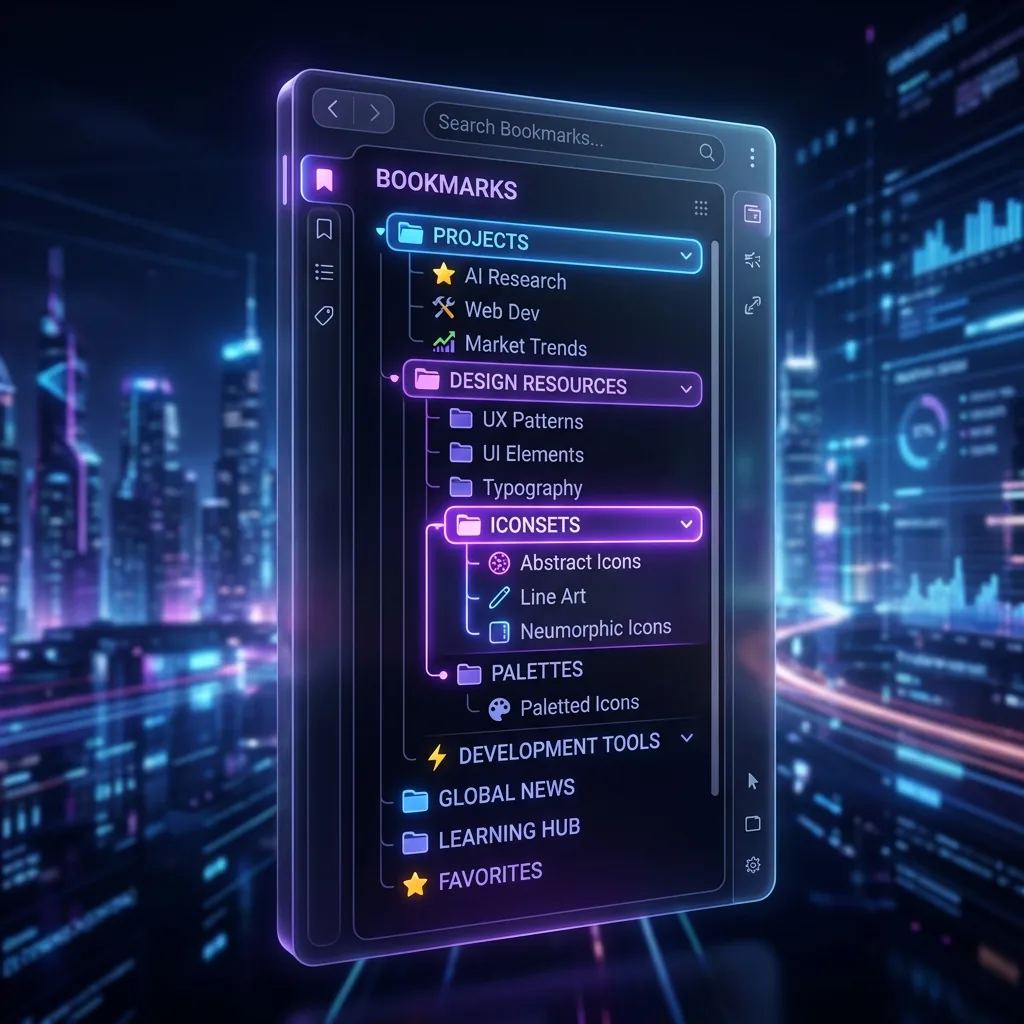
To export, open the bookmark manager (Ctrl+Shift+O), click the ⋮ at the top and choose Export bookmarks; you get one HTML file. To import, go to ⋮ → Bookmarks and lists → Import bookmarks and settings and choose the file. If you already have bookmarks, the imported ones go into a new folder under Other bookmarks.
You export (write out) and import (bring in) bookmarks when you want to:
- Back up: before a big cleanup, or as regular insurance
- Move to a new computer: when you don’t use Google Account sync
- Switch browsers: to and from Edge, Firefox, Safari and others
How to export Chrome bookmarks
- Open the bookmark manager. Press Ctrl+Shift+O (⌘+Option+B on Mac), or go to ⋮ → Bookmarks and lists → Bookmark manager.
- Click the ⋮ at the top and choose “Export bookmarks.” Pick where to save it. All your bookmarks, folders included, go into one HTML file.
💡 Put the date in the file name. You will know at a glance how old the backup is.
How to import bookmarks
From an HTML file
- Go to ⋮ → Bookmarks and lists → Import bookmarks and settings. A window opens where you choose the source.
- Choose the HTML file. Select the bookmarks file, pick the file you exported, and click Done.
Directly from another browser
If the other browser is on the same computer, choose it in the same window and import its bookmarks directly. Depending on the browser, you can also bring over history, passwords and more.
Where do imported bookmarks go?
| Your Chrome | Where imported bookmarks land |
|---|---|
| No bookmarks yet | The bookmarks bar |
| Already has bookmarks | A new folder inside “Other bookmarks,” at the right end of the bookmarks bar |
Importing doesn’t overwrite what you have. It adds a separate folder. If you can’t find the file Chrome itself keeps, see where Chrome bookmarks are stored.
After importing, clean up duplicates
Because importing adds rather than replaces, the same page often ends up bookmarked two or three times. Clean up duplicates once after importing. In LB TAB Layers, Clean → Find duplicates looks for duplicates across all your Chrome bookmarks. For the whole cleanup, see How to organize bookmarks in Chrome, and for links that no longer open, How to find broken bookmarks.
Moving to a new computer? Sync is easiest
Sign in to Chrome with the same Google Account on the new computer and turn on sync. Your bookmarks move over automatically, no files needed (see How to sync Chrome bookmarks between computers).
If you use LB TAB Layers
- Groups and saved tabs are in the “LB TAB Layers” bookmark folder, so they are included when you export or sync bookmarks.
- Notes and star ranks are not part of bookmarks. Export them in LB TAB Layers settings under Data Management → Export (JSON).
- On a new computer, install LB TAB Layers in a Chrome that has your synced bookmarks, and your groups can be restored from the “LB TAB Layers” folder.
Turn imported bookmarks into groups by project
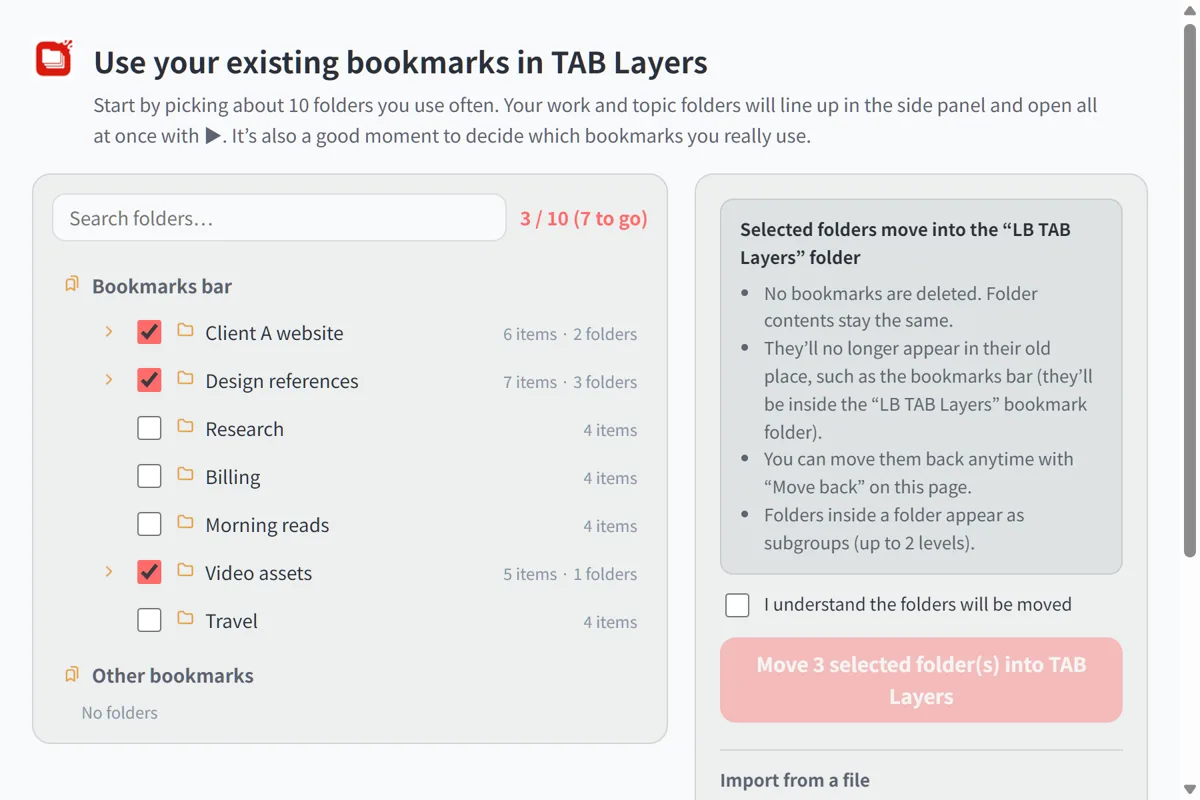
Bookmarks brought over from another computer or browser often come with a lot of folders. In LB TAB Layers, you can pick those folders and start using them as groups in the side panel.
- Just pick and move. From Start from your bookmarks (recommended) on the welcome screen, or Import bookmarks on the dashboard, check the folders you use most. About 10 is a good start.
- Nothing is deleted. The folders you pick move into the “LB TAB Layers” bookmark folder with their contents unchanged. Move back returns them any time.
- From a file, too. With Import from a file, files exported from another browser or extension (HTML, CSV, TXT) become groups. Coming from OneTab? See How to import your OneTab list.
Frequently asked questions
Q. How do I export my Chrome bookmarks?
Open the bookmark manager (Ctrl+Shift+O, ⌘+Option+B on Mac), click the ⋮ at the top and choose Export bookmarks. All your bookmarks are saved into one HTML file.
Q. Will importing bookmarks delete the ones I already have?
No. If you already have bookmarks, the imported ones are added in a new folder inside Other bookmarks. The same page is often duplicated, so clean up duplicates afterward.
Q. What is the easiest way to move bookmarks to a new computer?
Sign in to Chrome on the new computer with the same Google Account and turn on sync. Your bookmarks move over automatically, without any files.
See it in action
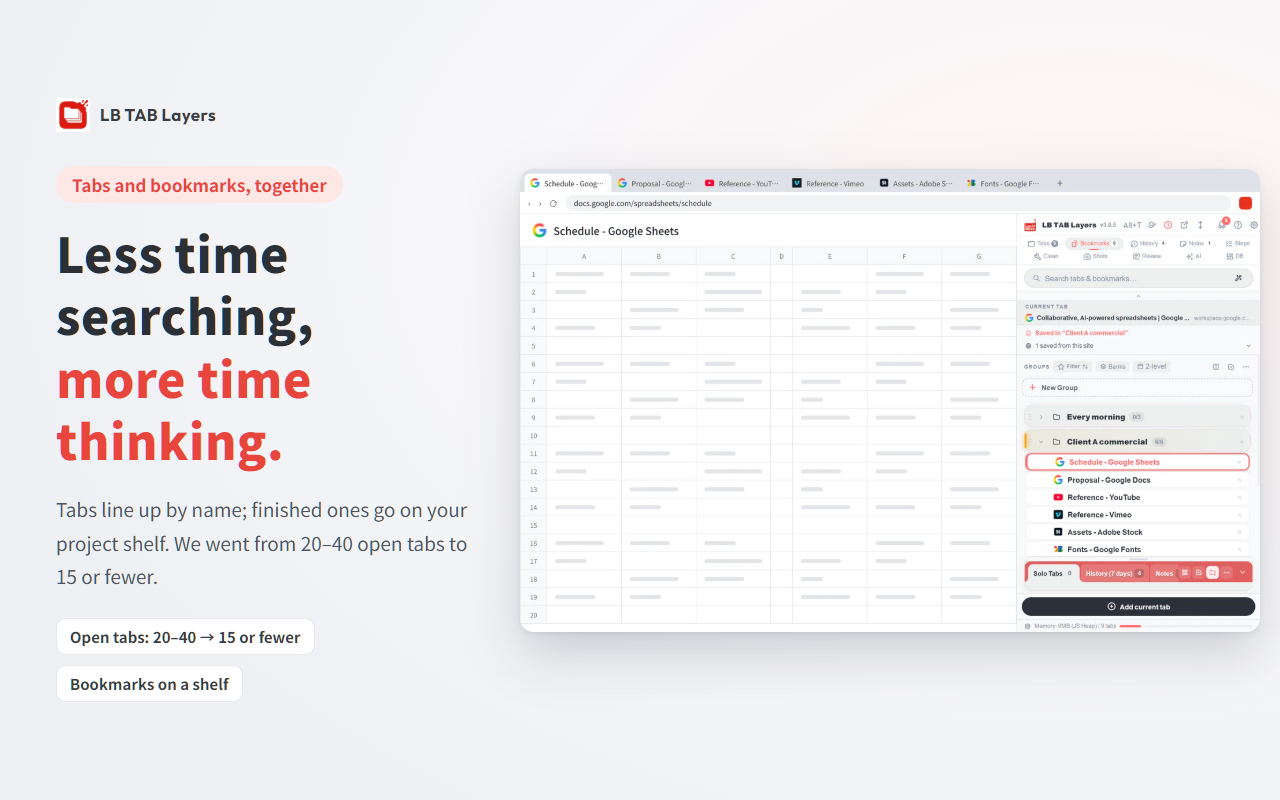
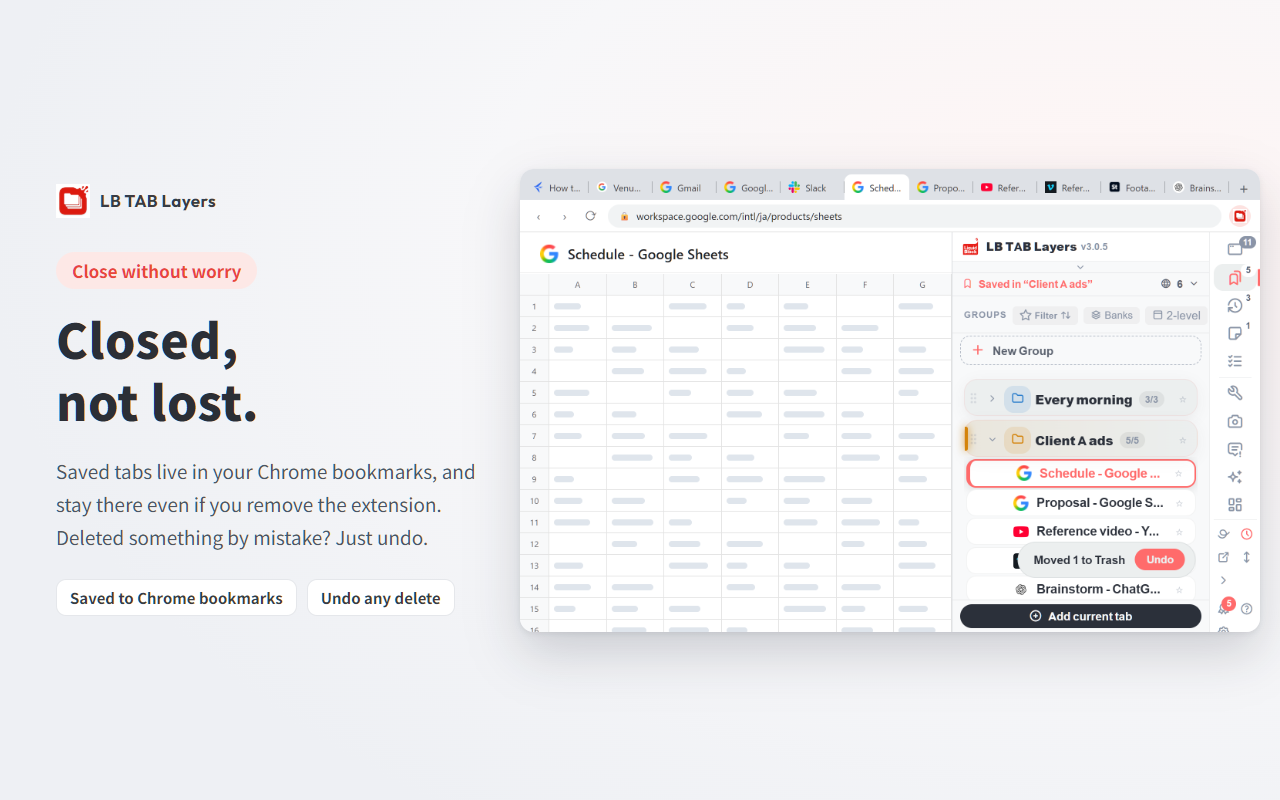
Imported folders, ready to open with ▶.
Pick the bookmark folders you use most and line them up as groups in the side panel. Nothing is deleted, and you can move them back.
Add to Chrome — it's free →