
With LB TAB Layers, select the tabs in the Chrome side panel and click NotebookLM in the bar at the bottom. Pick a notebook or create a new one, and the selected pages are added to it as sources, all together. It works with open tabs and with tabs you saved earlier. It is a PRO feature, available during the free trial.
Research has a way of growing. Ten tabs, then twenty. You want NotebookLM to read all of them, but adding sources usually means copying and pasting one URL at a time. This feature lets you put the tabs you already have open straight into a notebook.
How do I send my open tabs to NotebookLM?
- Start selecting. Click the select button (the check mark) at the top of the side panel, or long-press any tab row.
- Pick the tabs you want to send. Select all is there too.
- Click NotebookLM in the bar at the bottom of the panel.
- Choose a notebook in the small window that opens, or create a new one.
When it is done, you see how many pages were added. Click Open in NotebookLM to go straight to that notebook.
The NotebookLM button in the bottom bar arrived in version 3.0.5. In earlier versions, you can do the same thing after selecting with Copy → Send to NotebookLM.
What happens the first time you use it
The first time only, the window explains what will be sent and where, before anything happens:
- Pages are added to the NotebookLM account you are signed in to in this browser.
- Data goes only to NotebookLM (Google). Nothing is sent to us.
- Adding directly is experimental. It uses a NotebookLM interface that Google has not published, so it may stop working if Google changes it.
Click Use it and from then on you go straight to choosing a notebook. If you prefer, choose Just copy and open: the URLs are copied together and NotebookLM opens, and you paste them into NotebookLM’s Add source yourself.
Other ways to send pages to NotebookLM
| What you want to send | How |
|---|---|
| Selected tabs (open or saved) | Select them → NotebookLM in the bottom bar |
| A whole group | Right-click the group → Send to NotebookLM |
| The page you are on, or a link | Right-click the page or the link → Add to NotebookLM |
| The videos listed on a YouTube page | Right-click the YouTube page → Copy all video URLs on this page (for NotebookLM) |
On a YouTube playlist or search results page, that last option collects the URLs of all the videos listed there.
If you keep a group per research topic, sending the whole group is the quickest route. See groups and subgroups for how groups work, and the right-click menu for everything else you can do from there.
Why didn’t my pages get added?
- “You don’t seem to be signed in to NotebookLM.” Open NotebookLM, sign in, then try again.
- “It looks like a NotebookLM limit was reached.” NotebookLM limits the number of notebooks and sources. Check in NotebookLM itself.
- Some pages were skipped. Pages NotebookLM cannot read, such as members-only pages, are not added.
- It can’t connect. NotebookLM may have changed. Switch to Copy URLs and open NotebookLM and add them that way.
Good to know
- Only http and https pages can be sent. Chrome settings pages and extension pages are left out.
- If the same URL is selected twice, it is sent once.
- You can turn direct adding off at any time in Settings → Behavior → Helpful extras.
- It is a PRO feature, available during the free trial.
Want to find the right tabs before you send them? Searching your open tabs helps when there are dozens. For a tour of the other basics, see the operation guide.
Frequently asked questions
Q. Can I add all my open tabs to NotebookLM at once?
Yes. In LB TAB Layers, select the tabs and click NotebookLM in the bottom bar, then choose a notebook. The selected pages are added to it as sources together.
Q. Where is the page information sent?
Only to NotebookLM (Google). Pages are added directly to the NotebookLM account you are signed in to in this browser, and nothing passes through our servers.
Q. Can I add YouTube videos in bulk?
Yes. Right-click a YouTube playlist or search results page and choose “Copy all video URLs on this page (for NotebookLM)”. The URLs of the listed videos are collected for you to paste into NotebookLM.
Q. What if adding directly doesn’t work?
Switch to “Copy URLs and open NotebookLM”. The URLs are copied together, and you paste them into NotebookLM’s “Add source”.
See it in action
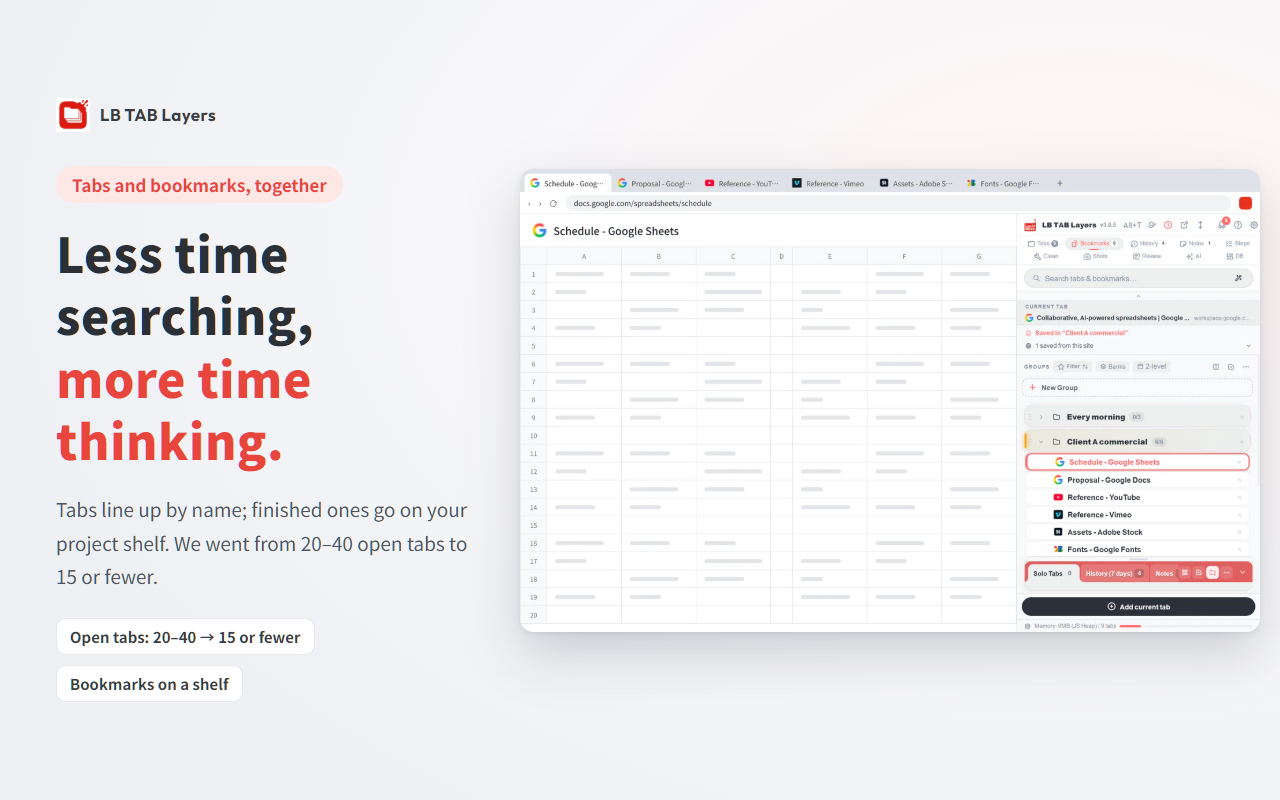
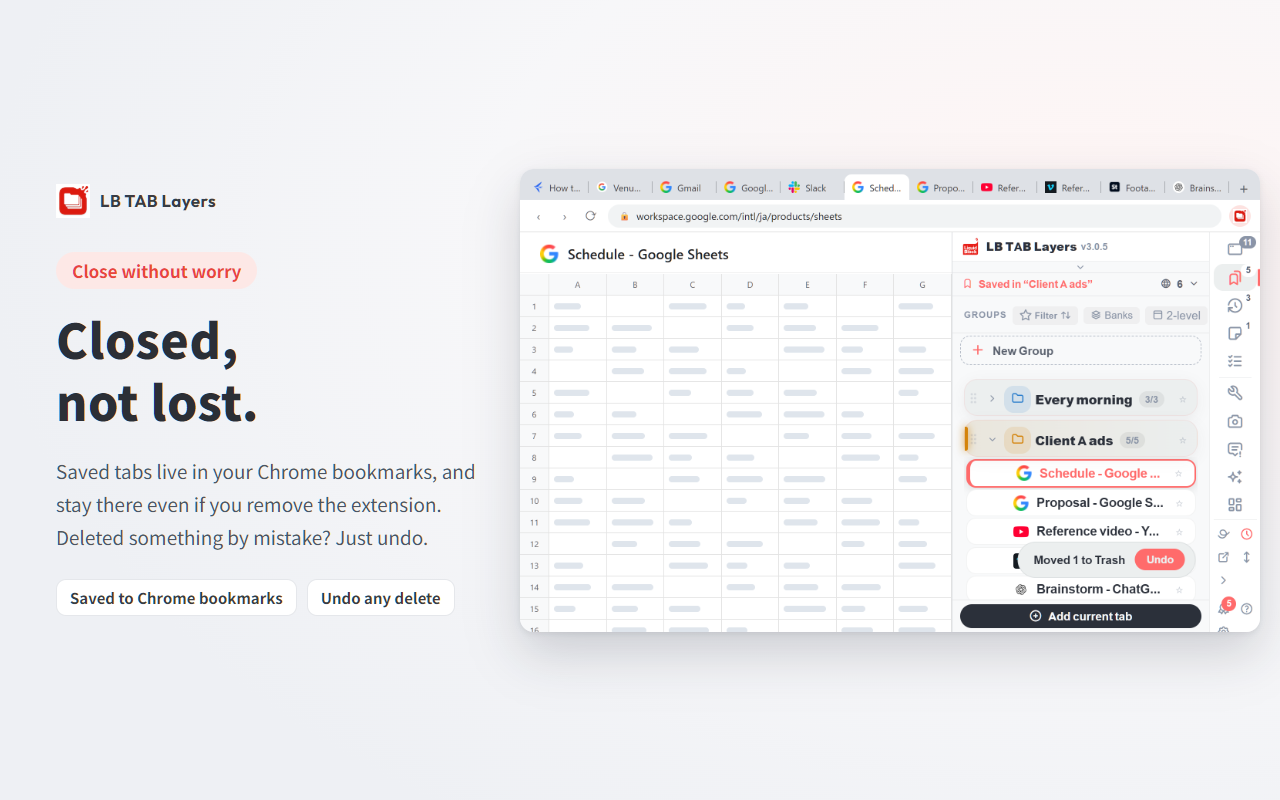
From research tabs to a notebook.
Select your tabs, pick a notebook, done. Every feature, including this one, is available during the free trial.
Add to Chrome — it's free →