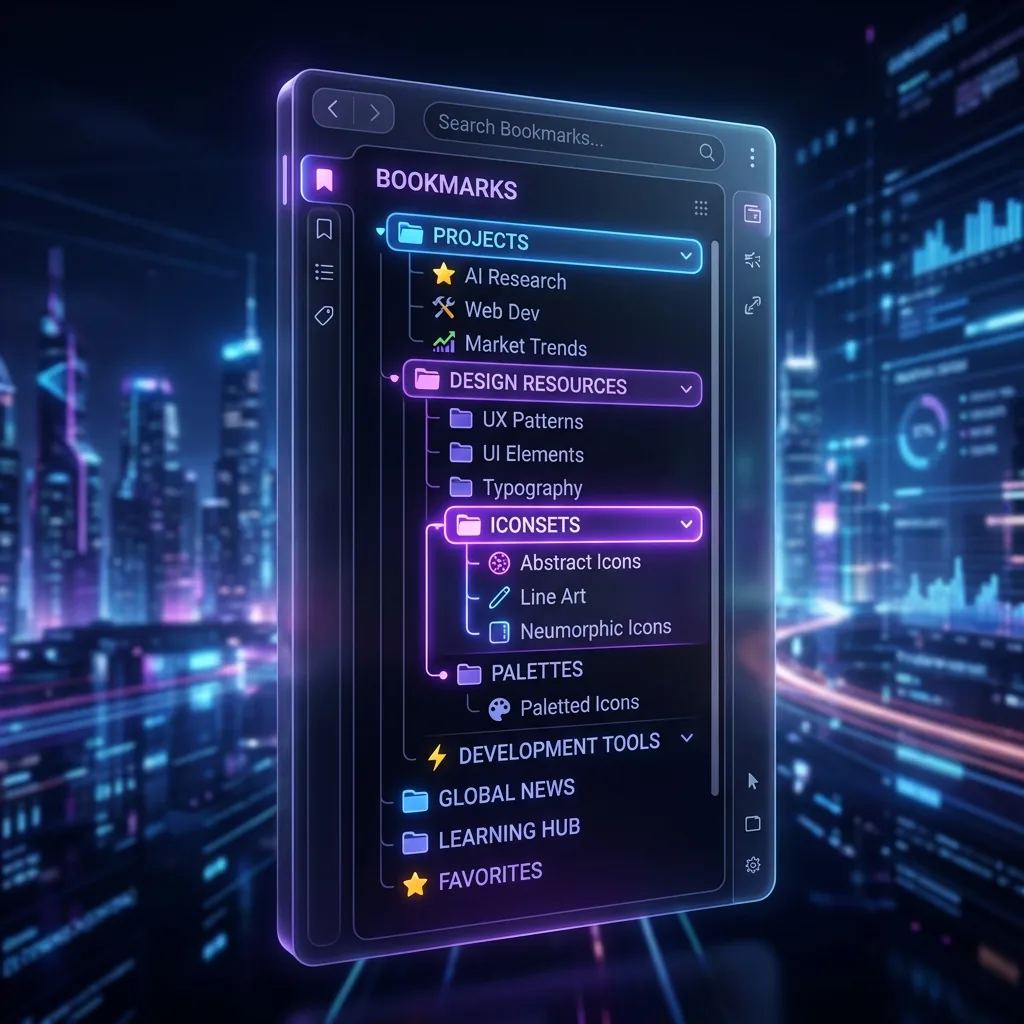
Chrome can do this on its own. Open the ⋮ menu → Bookmarks and lists → Show all bookmarks, and your bookmarks open in a panel beside the page, folders and all. No extension needed. A side panel extension such as LB TAB Layers solves a different problem: keeping your open tabs and the tabs you save for each project in one place.
Chrome’s side panel is the slim column that opens next to the page you are reading. Showing your bookmarks there means you can open them without leaving the page or opening the bookmark manager. Many people don’t know it exists, so here is how to use it, what it does well, and where it stops.
Show all bookmarks in the side panel (no extension)
- Click the ⋮ menu at the top right of Chrome.
- Choose Bookmarks and lists → Show all bookmarks.
- The side panel opens with all your bookmarks: the bookmarks bar, other bookmarks and their folders.
Click a folder to open it, and click a bookmark to open the page. Right-click a bookmark for more options, such as opening it in a new tab or editing it. To close the panel, click the X at its top.
If you use it every day, look for a pin icon at the top of the panel. Pinning puts a button for it in the toolbar, so it is one click away next time.
Chrome changes its menus from time to time, and the panel’s exact look depends on your version. If you can’t find these items, the Chrome help page linked at the end shows the current steps.
What Chrome’s bookmarks panel is good at, and what it isn’t
It is a simple, reliable way to browse bookmarks while you work. You can open them, move into folders and tidy things up without opening a separate page.
What it doesn’t do is show your open tabs. Your bookmarks sit on one side, and the tabs you are actually working with stay in the tab strip. Saving a set of open tabs into a folder, or reopening a whole folder of pages, takes extra steps elsewhere in Chrome. For finding a bookmark by name, you can type @bookmarks in the address bar, then a space, then a word to search.
If your problem is “I have too many tabs, and I want to keep them by project”, you need something that deals with tabs and saved tabs together.
Where LB TAB Layers fits in
LB TAB Layers is a Chrome extension that also lives in the side panel. Press Alt+T (Option+T on a Mac) to open it. It is not a replacement for Chrome’s bookmarks panel. It focuses on the tabs you are working with:
- Tabs shows the tabs open in your window.
- Bookmarks shows your groups and the tabs you saved in them.
- You switch between them, and History, Notes and Steps, from the side column.
Create a group with New Group, then save tabs into it with Add current tab, or right-click a tab and choose Save to Folder. Click ▶ on a group to open all its tabs as a Chrome tab group with the same name and color. ■ closes that tab group, and the tabs stay saved.
Your saved tabs are ordinary Chrome bookmarks
Every group is a Chrome bookmark folder, kept inside a folder called “LB TAB Layers”. That has a few useful effects:
- Tabs you save in LB TAB Layers also appear in Chrome’s own bookmarks panel and bookmark manager, inside the “LB TAB Layers” folder.
- If you remove the extension, the bookmarks stay.
- If you delete something by mistake, it goes to a bookmark trash and you get an Undo button for 8 seconds.
To be clear about the limits: the LB TAB Layers panel shows the tabs saved in its own groups. It does not list your other Chrome bookmarks, such as the bookmarks bar or older folders. For those, keep using Chrome’s bookmarks panel. The two work fine side by side, and you can switch between them in the side panel.
Searching
The search box at the top of LB TAB Layers looks through your open tabs, your saved tabs and today’s history. It doesn’t search the rest of your bookmarks. For that, Chrome’s bookmark manager or @bookmarks in the address bar is the right tool.
Which should you use?
- You want to browse everything you have bookmarked: Chrome’s bookmarks side panel. It is built in and free.
- You want to keep working tabs by project, close them and reopen them later: a side panel tab manager like LB TAB Layers.
Many people use both: Chrome’s panel for the long-term library, and LB TAB Layers for what they are working on this week. The free plan includes 5 groups, and every feature is free for the first 90 days. For a wider look at the side panel, see using Chrome’s side panel as a tab manager, and for tidying the bookmarks themselves, how to organize bookmarks in Chrome.
Chrome’s official help
- Create, find and edit bookmarks in Chrome — Google Chrome Help
- Manage Chrome side panel — Google Chrome Help
Frequently asked questions
Q. How do I show all bookmarks in Chrome’s side panel?
Open the ⋮ menu → Bookmarks and lists → Show all bookmarks. Your bookmarks open in the side panel beside the page. Menu names can vary slightly between Chrome versions.
Q. Does LB TAB Layers show all my Chrome bookmarks?
No. Its panel shows your open tabs and the tabs saved in its own groups, which are bookmark folders inside an “LB TAB Layers” folder. Use Chrome’s bookmarks panel for the rest of your bookmarks.
Q. Will tabs saved in LB TAB Layers show up in Chrome’s bookmarks?
Yes. They are ordinary Chrome bookmarks inside the “LB TAB Layers” folder, and they stay if you remove the extension.
Q. Is LB TAB Layers free?
The free plan includes 5 groups. Every PRO feature is free for 90 days after you install.
▶ See it in action
Managing bookmarks and tabs together in the sidebar. (The video shows the Japanese UI.)
Your working tabs, beside the page.
Open tabs and tabs saved by project in one side panel. Saved as Chrome bookmarks · No account needed · Every feature free for 90 days
Add to Chrome — it's free →