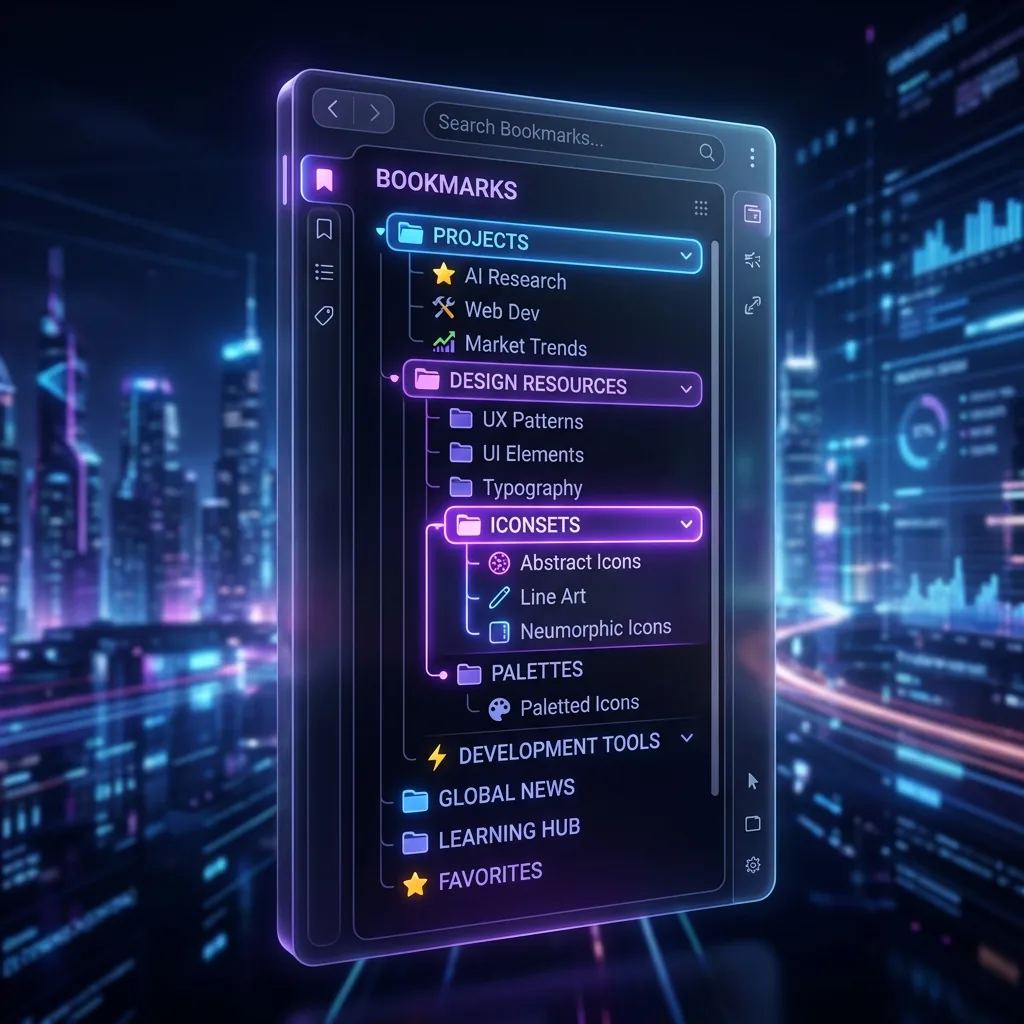
The simplest system for students is one group per course, and one subgroup per paper or project. Save sources into them as you find them, write a short note on why each one matters, close the set when you switch courses, and archive the course when the term ends.
A research paper starts with three tabs. By the end of the week it is forty: journal articles, a library database, two PDFs, a video lecture, the course page, a forum thread and the document you are actually writing. Then another course needs your attention, and its tabs pile on top.
Students don’t have a tab problem because they are disorganized. They have one because research is the most tab-heavy work there is.
Why student tabs pile up
- Several projects at once. Four or five courses, each with readings, assignments and a portal.
- Sources you can’t lose. Closing a tab with a good source feels risky when you will need it for the bibliography.
- Long deadlines. A paper due in three weeks means three weeks of open tabs.
- Shared computers and restarts. A lab machine or a forced update can wipe out a session.
A structure that matches how school works
In LB TAB Layers, a group is a named set of tabs in Chrome’s side panel, saved as a Chrome bookmark folder. Subgroups go one level deeper. For a term, that looks like this:
| Group | Subgroups | What goes in it |
|---|---|---|
| History 201 | Essay: Industrial Revolution | Sources for that essay |
| Biology 110 | Lab report 3 | Protocols, data sheets, papers |
| Statistics | — | Course page, problem sets, tutorials |
| Thesis | Literature review, Methods | Papers sorted by chapter |
| Daily | — | Email, calendar, learning portal |
The free version allows five groups in total, subgroups included — enough for a typical course load if you keep subgroups for big projects. Every feature, with no group limit, is open for the first three months after you install, which covers most of a semester. More on structure in groups and subgroups.
Collect sources as you find them
- Right-click a page and choose Save to TAB Layers to put it into one of your existing groups without leaving the article.
- Open tabs that aren’t saved yet are listed under Solo Tabs. Drag them into a group, or right-click and choose Save to Folder.
- Saved tabs are ordinary bookmarks, so they are still there after a restart or if you open Chrome on another computer signed into the same Google account.
All the ways to save are in three ways to save tabs.
Notes: the citation detail you will forget
Three weeks later, “Smith 2019” in a list of forty tabs tells you nothing. Right-click a saved tab and choose Edit note to write one line about it:
- “Main source for section 2. Table on p. 14.”
- “Counter-argument. Quote the last paragraph.”
- “Peer-reviewed? Check before citing.”
The note shows when you hover over the tab. See notes for more.
Find a source again in seconds
The search box at the top of the panel looks through the titles, addresses and notes of your saved tabs as you type, and it forgives small typos. Type “photosyn” or a journal name, and the matching tabs appear across all your groups. Because notes are searched too, a note like “use for the conclusion” brings the right source back even when its title is a string of author names. Details in fuzzy search and how to search open tabs in Chrome.
Switch courses without the clutter
When you move from history reading to a statistics problem set:
- Press ■ on the history group. Its tabs close and stay saved.
- Press ▶ on the statistics group. All its tabs open at once.
Your tab bar only holds the course you are working on. That alone makes it easier to think about one thing.
Study time without distractions
LB TAB Layers has a Focus Timer for 25-minute study sessions. Put the sites that pull you away — video, social media, shopping — into a group, right-click it and choose Block / unblock during Focus Timer. Then start the timer from the clock button at the top of the panel and set a PIN. Until the timer ends, opening those sites shows a Focus Timer notice instead of the page. You can stop early with your PIN.
Capture a page before it changes
Web pages change, and course pages disappear at the end of term. To keep a copy of what a page said when you read it, use Capture full page in the screenshot tools. Chrome’s Save As dialog opens so you can file the image with your notes.
End of term: archive, don’t delete
When grades are in, right-click the course group and choose Archive. The group leaves your main list and its bookmark folder moves into an archive folder. Archived groups don’t count toward the five-group limit of the free version, and you can Restore one any time — useful when next year’s course builds on this one.
Laptops, lab computers and group projects
Because your groups are Chrome bookmarks, they follow your Google account. Sign in to Chrome on your own laptop and on your desktop at home, turn on bookmark sync, and the same course folders appear on both. On a shared lab computer, use your own Chrome profile rather than someone else’s window, and sign out when you leave.
For group projects, keep a separate group for the shared work — “Team project: marketing plan” — so its sources don’t mix with your own essays. When you need to send the list to a teammate, open Chrome’s bookmark manager (Ctrl+Shift+O, or ⌘+Option+B on Mac), find the group’s folder and copy the links from there. Nothing is locked inside the extension.
A weekly routine
- Sunday: sort anything left in Solo Tabs into a course group, or close it.
- Each study session: ▶ one course, work, ■ when you are done.
- Before a deadline: open the paper’s subgroup and go through your notes to build the bibliography.
Frequently asked questions
Q. What is the best way for students to organize browser tabs?
Make one group per course and a subgroup for each big paper or project. Save sources into them as you find them, add a short note on why each matters, and close the group when you switch courses.
Q. Is LB TAB Layers free for students?
Yes. The free version includes up to 5 groups (subgroups count toward that). Every feature is open for the first 3 months after you install. PRO is a one-time purchase of $9.99.
Q. Can I block distracting sites while studying?
Yes. Put those sites in a group, right-click it and choose Block / unblock during Focus Timer, then start the 25-minute Focus Timer from the side panel. You set a PIN to stop early.
Q. What happens to my course tabs at the end of the term?
Right-click the group and choose Archive. It moves out of your main list, stays in your bookmarks and no longer counts toward the free group limit. Restore it whenever you need it.
▶ See it in action
Managing bookmarks and tabs together in the sidebar. (The video shows the Japanese UI.)
Every course in its own place.
Save sources by course and paper, as ordinary Chrome bookmarks. Try every feature free for 3 months.
Add to Chrome — it's free →