
In the LB TAB Layers side panel, click Review → Add a note to this page. The page is captured and an annotation screen opens. Click each spot you want changed to place a numbered pin (①②③), write an instruction for each one, and click Add to sheet. For a single image, right-click it and choose Add revision notes to this image. Send the sheet as text, or export it as PDF or PowerPoint.
“The image to the right of the third heading from the top.” Feedback like that means the other person has to open the page and start counting. If you capture the screen, put a number on each spot and write what to change next to it, nobody has to search. LB TAB Layers does this for web pages and images the same way it does for video.
How to mark up a web page
- Open the page you want changed and press Alt+T (Option+T on a Mac) to open the side panel.
- Click Review. One large button appears that matches what you are looking at.
- Click Add a note to this page. On a page with a video, the button is Add a note to this video, and Capture the page is next to it.
- Write your notes on the captured screen, then click Add to sheet (Ctrl+Enter).
The annotation tools
- Numbered pin: click a spot to place ①②③…, then write the instruction for each pin in the column on the right. This is the core of a revision sheet.
- Arrow, Rectangle, circle, Text, Highlighter, Pen: to show a place or an area.
- Pixelate: to hide things you shouldn’t pass on, such as a customer’s name or an email address.
- Ctrl+Z undoes the last step.
Mark up a single image
A design draft that arrived in chat, a chart in a document: when you only want to write on one image, right-click it and choose Add revision notes to this image. Only that image is cut out, without the rest of the page, and the annotation screen opens.
Already took a screenshot? Click Add revision notes under the image. You can add numbered pins to it without capturing it again.
Export the revision sheet as PDF or PowerPoint
Each capture goes into the revision sheet for that page. Several captures of the same page are listed in the order you took them. From the sheet you can:
| Export | Good for |
|---|---|
| Copy as text | Pasting into chat or email. The quickest |
| A revision sheet with images and notes side by side, to send as a file | |
| PowerPoint | Showing on screen in a meeting, or passing around your team |
| Markdown | Note apps and issue trackers |
| CSV | Spreadsheets and trackers (number, note, done, version) |
Tick Done on the notes that have been fixed and they fade out. When the next round comes back, Start version v2 keeps the new notes apart from the old ones, and All versions lets you filter by round.
Deleted something by mistake?
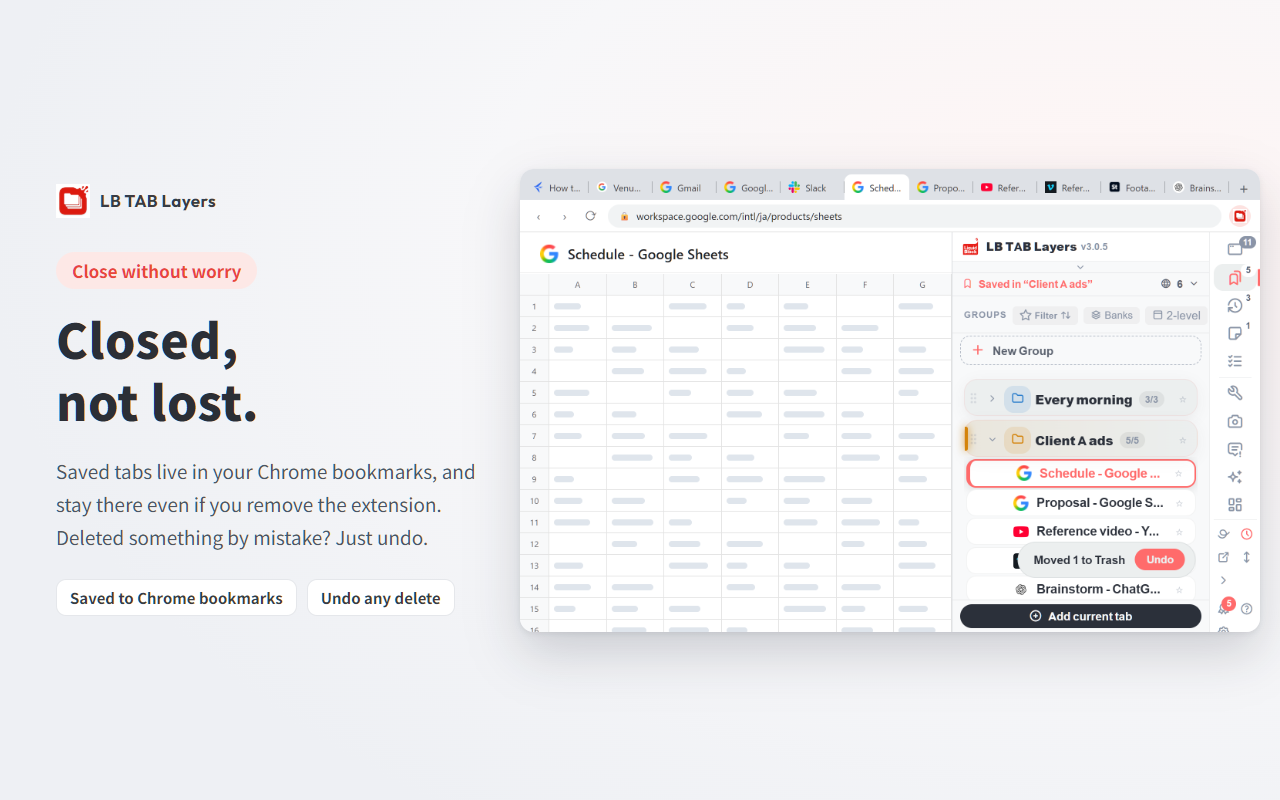
- You can delete one note or a whole sheet. Right after, Undo brings it back.
- Later on, you can still restore it from the Trash. Items in the trash are deleted automatically after 30 days.
Where the images are kept
The captures and notes are stored in Chrome on this computer (the extension’s storage). They are not sent anywhere, including our servers, and they stay after you close the panel or restart Chrome. They are not image files in a folder, so you won’t see them in File Explorer or Finder. To keep something as a file, export it as a PDF. Removing the extension deletes them, so export anything you want to keep first. The same explanation is always available under Where are the images? on the screen.
Good to know
- Pages that can’t be captured: Chrome’s settings pages, the Chrome Web Store and other pages where extensions can’t run.
- One computer: revision sheets are saved per computer and can’t be opened by several people at once. To share, export.
- Plan: revision notes are a PRO feature, and you can use them during the free trial.
We built this for our own studio first. When we fixed our own website, every “Where exactly?” “Here.” in chat cost one round trip per spot. A capture with a number on each spot removes that round trip. For everything you can start from the page itself, see the right-click menu guide.
Frequently asked questions
Q. Can I add numbered annotations to a screenshot of a website?
Yes. In the side panel, click Review → Add a note to this page. The page is captured, and you can click spots to place numbered pins ①②③ and write an instruction for each. Add to sheet puts it in that page’s revision sheet.
Q. Can I write on an image someone sent me in chat?
If the chat or email is open in Chrome, right-click the image and choose Add revision notes to this image. Only that image is cut out and the annotation screen opens.
Q. Can I export the annotations as a PDF or PowerPoint?
Yes. The revision sheet exports as PDF or PowerPoint, with the images and numbered notes side by side. You can also copy it as text or export Markdown and CSV.
Q. Can I hide private information before sending?
Use Pixelate on the annotation screen to hide names, email addresses or anything else before you export.
See it in action
Point, number, send.
Numbered pins on any page or image, exported as a PDF or PowerPoint revision sheet. Revision notes can be used during the free trial.
Add to Chrome — it's free →