
With LB TAB Layers, press Alt+Shift+C at the moment you want to comment on. The video pauses and a box opens under it. Type your note and press Enter: the note is saved with the playback position and an image of the frame, and the video keeps playing. It works on YouTube, Vimeo and Google Drive. Your notes collect in one revision sheet per video, which you can copy as text or export as PDF, PowerPoint, Markdown or CSV.
“At about 1:23, the logo in the top right.” When you give video feedback in plain text, the other person has to open the video, find the time, and then find the spot. Revision notes in LB TAB Layers skip that. You write the note on the frame you are looking at, and the time and the picture are saved with it.
We are a video and motion graphics studio, and reviewing cuts with clients is part of every working day for us. We built this for our own reviews first.
What a good video feedback tool needs
- The spot is obvious: the playback position (such as 00:12) and a picture of the frame, with numbered marks where needed.
- You don’t lose the flow: pause, write, and keep watching right away.
- It is ready to send: text you can paste into chat, or a revision sheet as PDF or PowerPoint.
- You don’t upload the video anywhere: a client’s footage should not end up on a service you don’t know.
Revision notes do all four from the Chrome side panel. You don’t need an account.
How to add a comment to a YouTube video at a timestamp
- Play the video on YouTube, Vimeo or a Google Drive preview. Videos embedded in other sites work too.
- Press Alt+Shift+C at the moment you want to comment on. It works right after you install, with no setup. You can also right-click the page and choose Add a revision note at this moment.
- Type your note in the box that opens under the video, for example “Make the logo a little bigger”.
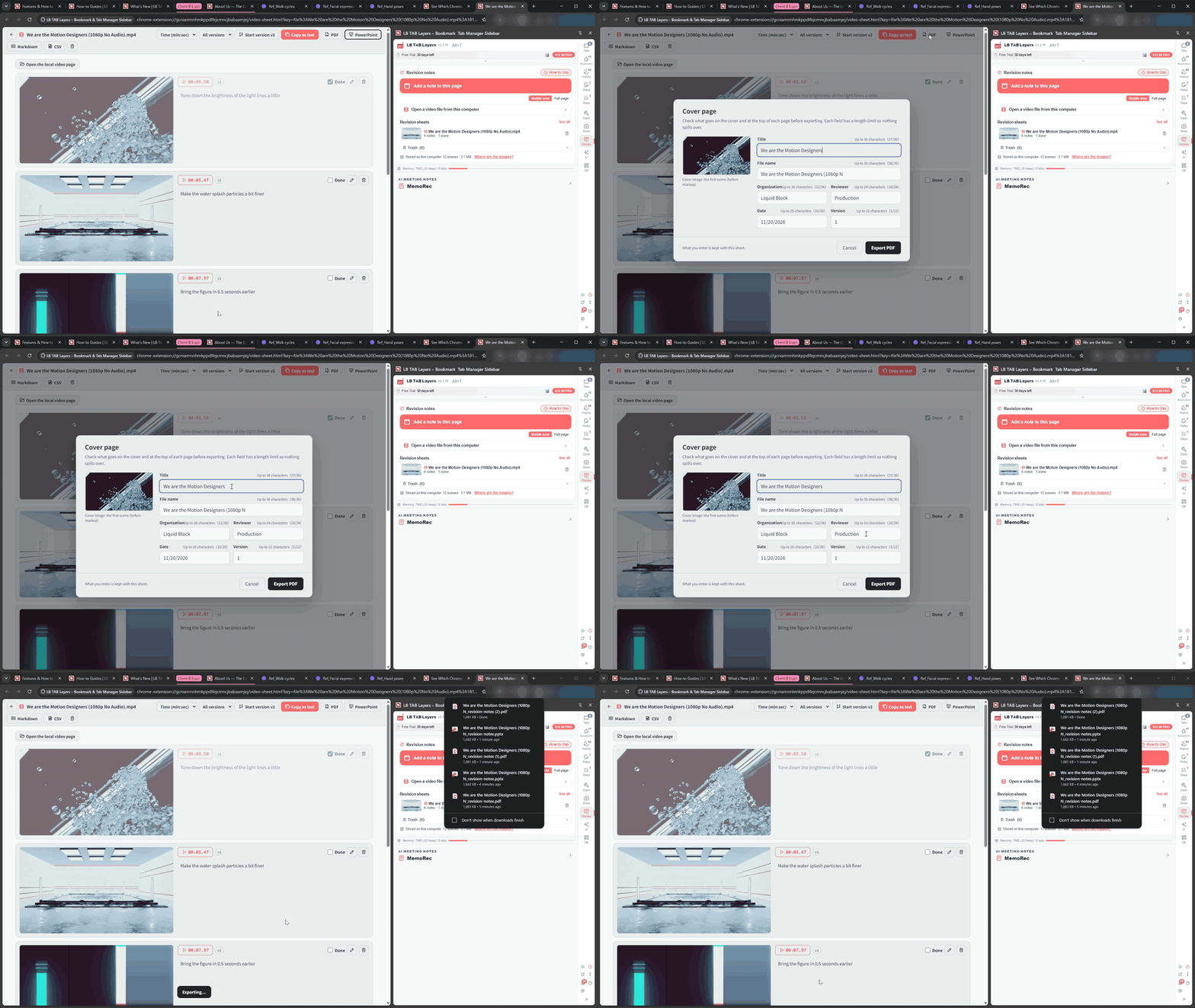
- Press Enter. The frame, the playback position (for example 00:08.44) and the video title are saved, and the video keeps playing.
A short message confirms it, such as “✓ Saved 00:07 to the revision sheet”, with a link to open the sheet.
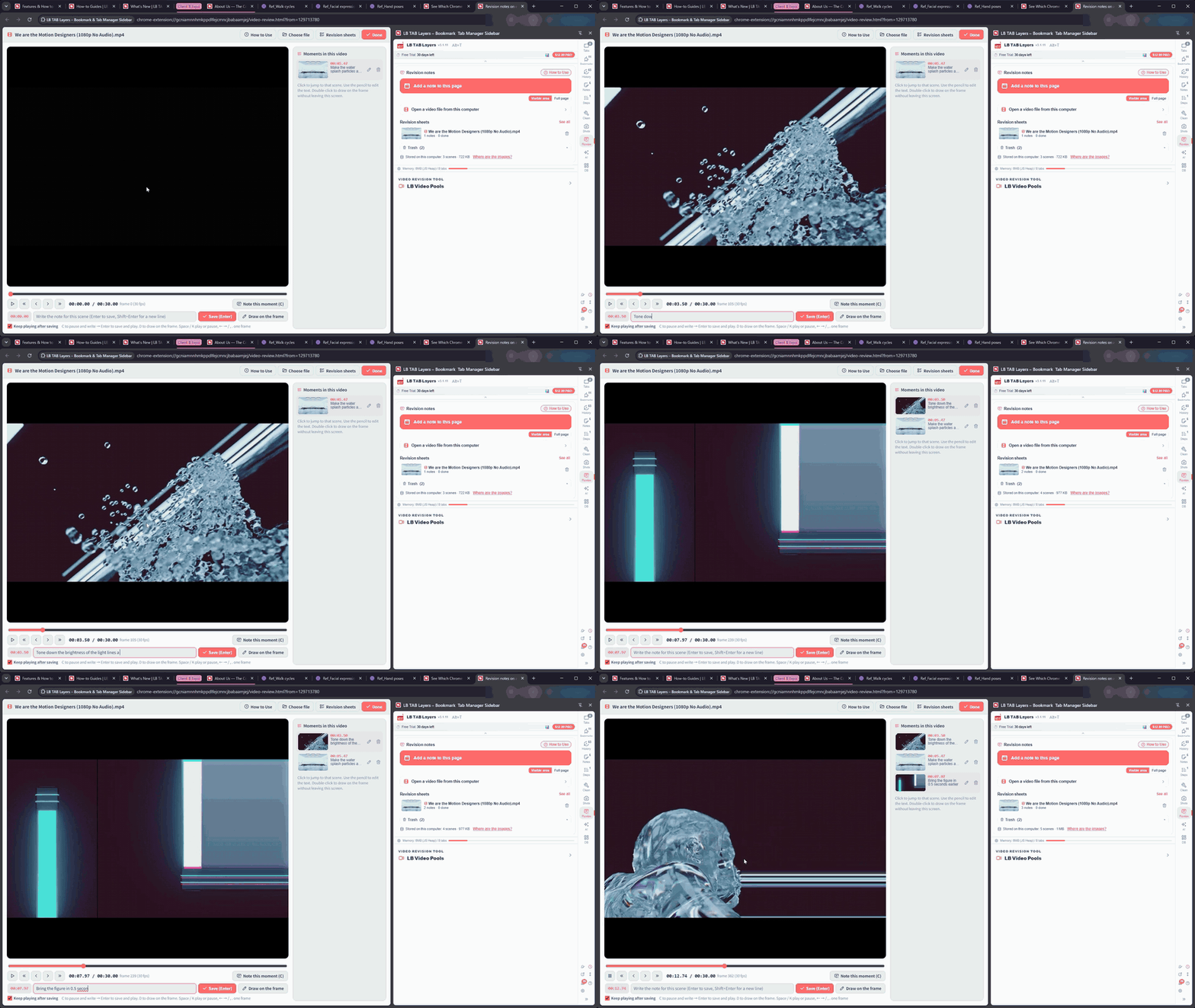
After the first note, a thin Revision mode strip appears under the video. While it is there, you only need to press C to pause and write. A few details:
- Esc cancels without saving.
- If you would rather stay paused after saving, untick Keep playing after saving.
- It works in full screen, too.
- Keys you type into a comment box or search box on the site are left alone, so typing a “c” there won’t pause the video.
- To finish, press End on the strip or Esc. The site’s own keys work again, and revision mode also ends when you go to another site.
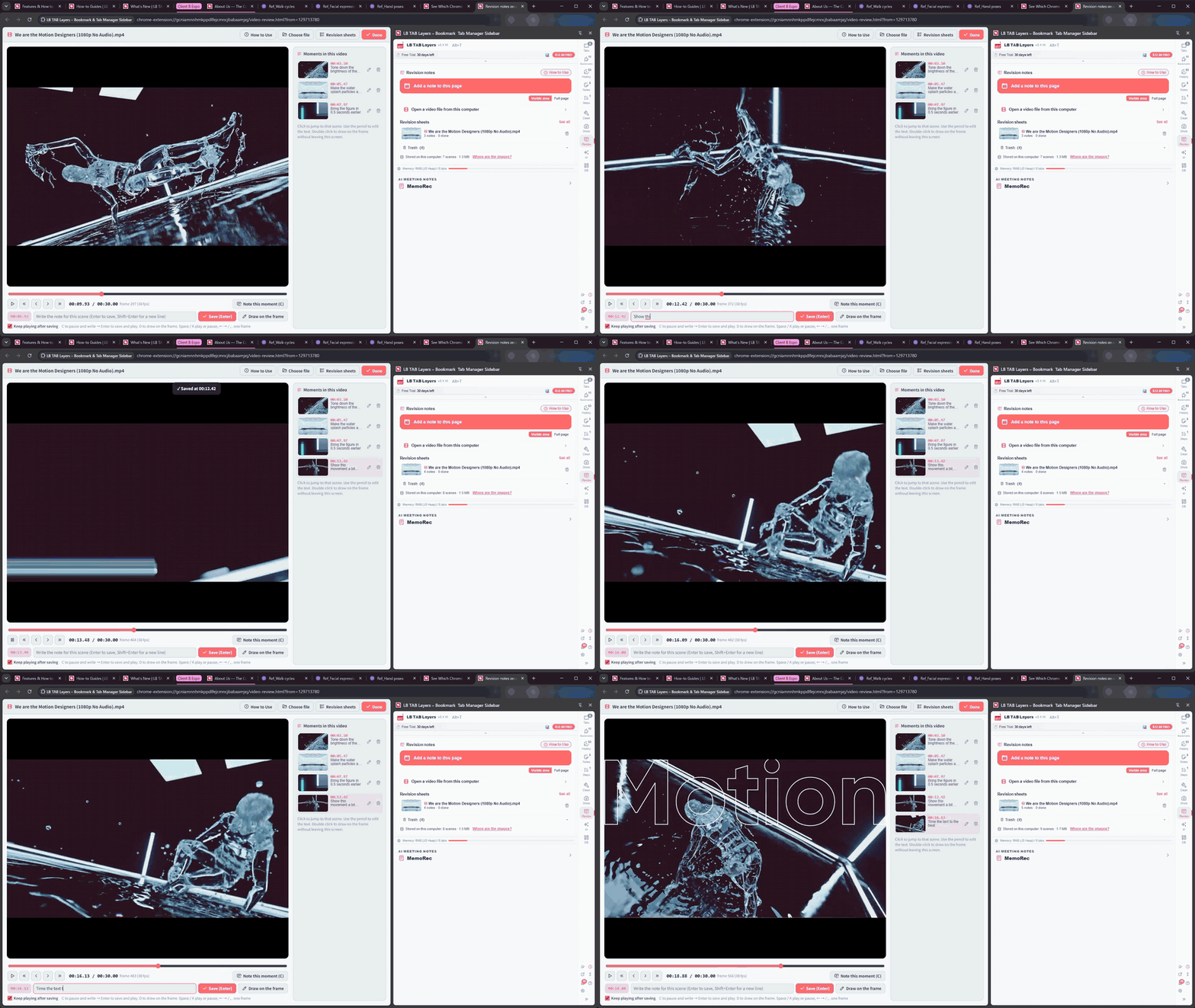
Point at the exact spot with numbered pins
Most notes are fine as plain text. When you need to point at something on the screen, press D (or Draw on the frame). You stay on the same page and draw on the paused frame:
- Numbered pin: click a spot to place ①②③…, and write the instruction for each one on the right. This is the heart of a revision sheet.
- Arrow, Rectangle, circle, Text, Highlighter, Pen: to show a place or a direction.
- Pixelate: to hide something you don’t want to show.
Ctrl+Z undoes. Ctrl+Enter saves and takes you back to the video, which keeps playing. If the site shows a sign-in prompt or a play button over the video when it pauses, it is hidden for the moment of the capture, so it doesn’t end up in your image.
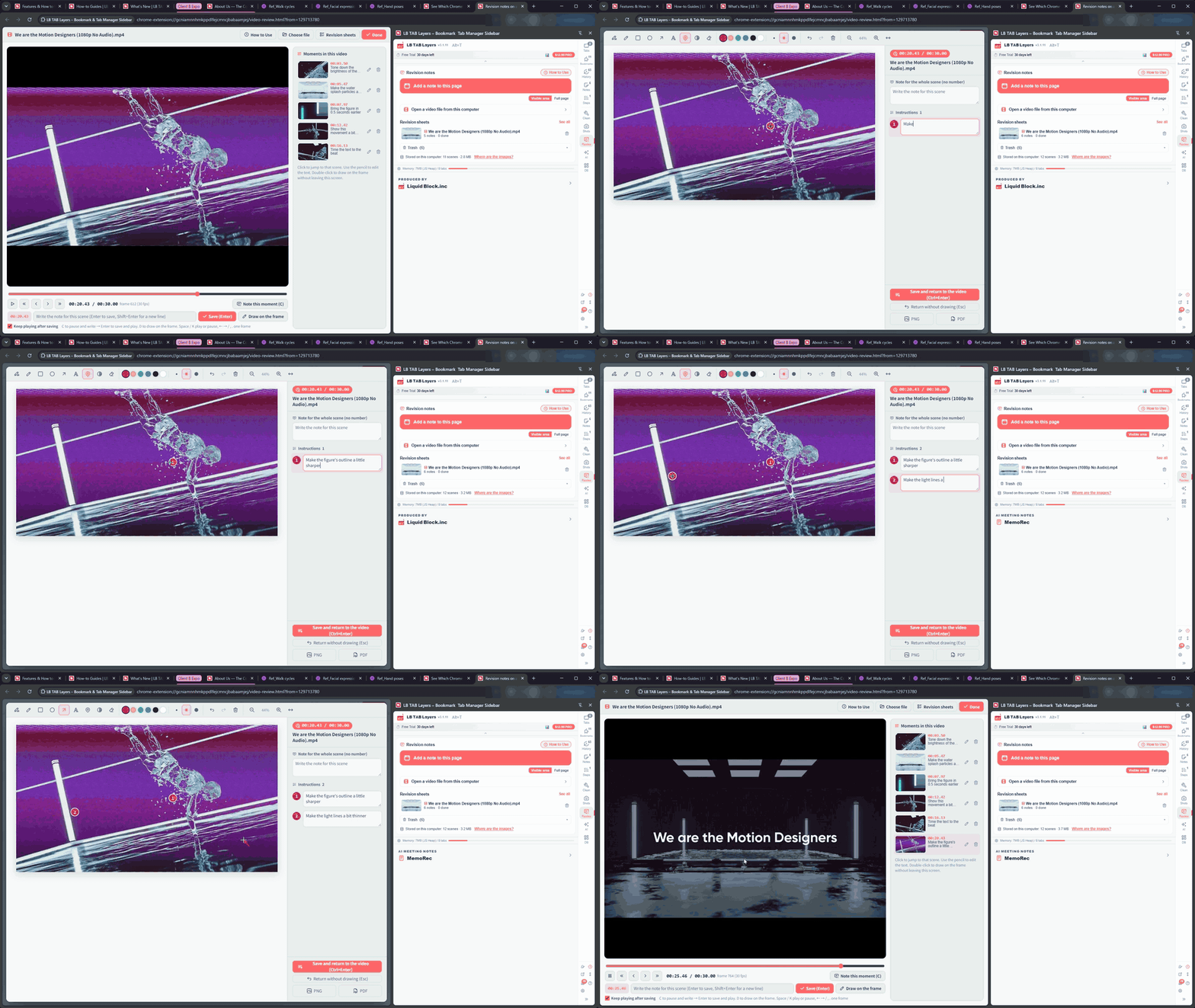
Your notes collect in one sheet per video
Every note goes into the revision sheet for that video. Open it from the list under Review in the side panel. Notes are in order of playback position.
- Click a time to go to that moment. On YouTube, the open tab jumps back to that second. If the tab is closed, it opens a link with the time in it.
- Done: tick the notes that have been fixed. They fade out.
- Start version v2: when the next cut comes back, notes you write from then on go into v2, so last round and this round don’t mix. All versions lets you filter by version.
You can show the time three ways: Time (00:08.44), Frame count, or min:sec:frame, whichever the person editing the video works in.
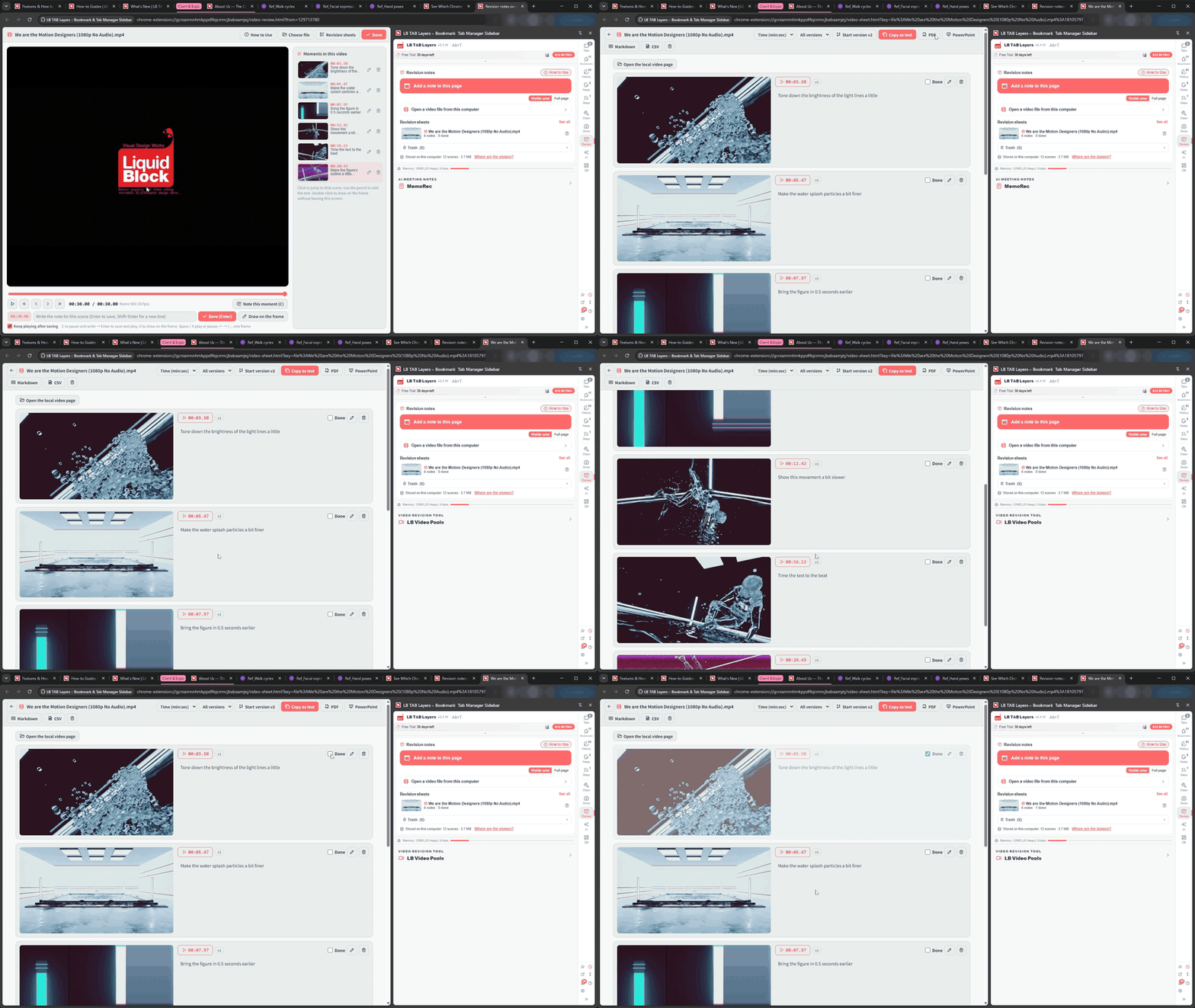
Send it as text, PDF, PowerPoint, Markdown or CSV
| Export | Good for |
|---|---|
| Copy as text | Pasting straight into chat or email |
| A revision sheet with the images and notes side by side | |
| PowerPoint | Showing on screen in a meeting, or sharing inside your team |
| Markdown | Note apps and issue trackers. Video times become links that jump to that moment |
| CSV | Spreadsheets and production trackers (time, number, note, done, version) |
Copied as text, a sheet looks something like this:
[Revision notes] Brand film — draft 1
https://www.youtube.com/watch?v=...
00:08.44
① Make the logo a little bigger
② Change the text color to white
00:16.42 [done]
① Hold this shot 0.5 seconds longer
Why we work this way now
Our old routine was to watch the whole video once, write down the times, go back to each one, take a screenshot, paste it into PowerPoint and type the note. By the time we were writing, we had lost the flow of the cut and were only thinking about one still image. Notes ended up duplicated, missing, or not needed at all.
In our own studio, revision rounds finished about 3 times faster once we switched to writing notes on the video itself. The player is right there, so stepping back or forward takes a second, and the numbered pins mean anyone reading the sheet knows which spot each note is about.
Good to know
- Where it is saved: the images and notes stay in your browser (the extension’s storage). They are still there after you close the panel or restart Chrome. They are not sent to our servers.
- Protected videos: copy-protected videos, such as some streaming services, capture as a black image.
- Frame accuracy: browser players don’t always stop exactly on a frame. For frame-exact notes, open the file itself with Open a video file from this computer under Review.
- Image size: videos in the browser are captured at the size they appear on screen. A local video file is captured at its original size.
- Plan: LB TAB Layers is free to install. Revision notes are a PRO feature, and you can use them during the free trial.
Want to see the rest of the extension? The operation guide shows the main actions on screen, and the right-click menu guide lists what you can do from the page.
Frequently asked questions
Q. How do I leave timestamped feedback on a YouTube video?
With LB TAB Layers installed, press Alt+Shift+C at the moment you want to comment on. The video pauses and a box opens under it. Type your note and press Enter. The note is saved with the playback position, the video title and an image of the frame, and the video keeps playing.
Q. Does it work with Vimeo and Google Drive videos?
Yes. It works with Vimeo, Google Drive previews and videos embedded in other sites. Copy-protected videos capture as a black image, so they can’t be used.
Q. How do I send the notes to someone?
Open the revision sheet and use Copy as text to paste the times and numbered notes into chat or email. You can also export the sheet as PDF, PowerPoint, Markdown or CSV.
Q. Is it free?
LB TAB Layers is free to install. Revision notes are a PRO feature, and you can use them during the free trial.
See it in action
Watch, note, keep watching.
Timestamped notes with the frame attached, collected into one sheet per video. Revision notes can be used during the free trial.
Add to Chrome — it's free →