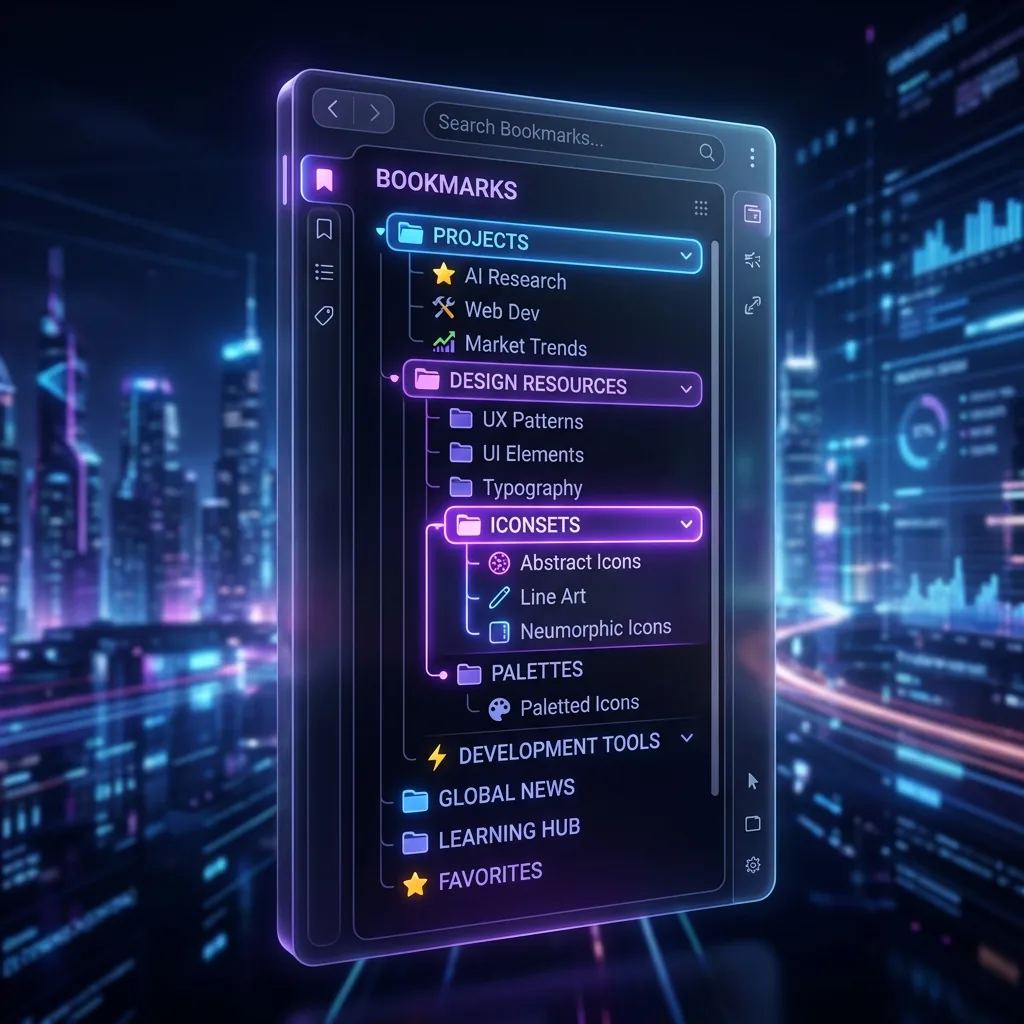
Chrome’s sidebar is called the side panel. Open it from the More ⋮ menu (for example Bookmarks and lists → Show all bookmarks) and close it with the Close button at its top right. To put it on the left, go to More ⋮ → Settings → Appearance and choose a side under “Side panel.” Drag its edge to resize it, and pin the panels you use most to the toolbar so they open in one click.
“How do I show bookmarks on the side?” “How do I get rid of this panel?” “Can I put it on the left?” All of these are about Chrome’s side panel. Here are the basics, using the steps from Google’s own help page.
What the Chrome side panel is
A narrow panel that opens next to the page you’re viewing, so you can use something else without leaving the page. It can show:
- Bookmarks
- Reading list
- History
- Google Lens
- Reading mode
- Extensions that support the side panel
A bit of history: Chrome is the browser that dropped the sidebar
Side panels are an old idea. Internet Explorer could show favorites and history at the side, and Firefox and Opera opened bookmarks and history in a sidebar too. When Chrome launched in 2008, it shipped with just tabs and an address bar. One of its design principles was “Content, not Chrome” — give the screen to the page, not to the browser’s frame — and the sidebar didn’t make the cut.
Roughly fifteen years later, Chrome brought it back. Since Chrome 114 (2023), extensions can use the side panel too. We think it came back because keeping tools beside the page — research, AI chats, notes, reference material — has simply become how people work.
How to open the side panel
| To show | From the More ⋮ menu |
|---|---|
| Bookmarks | Bookmarks and lists → Show all bookmarks |
| Reading list | Bookmarks and lists → Reading list → Show reading list |
| History | History → Show history in side panel |
| Reading mode | More tools → Reading mode |
| Google Lens | Search with Google Lens |
More on bookmarks: show all your bookmarks in the Chrome side panel.
How to close (hide) the side panel
Click Close at the top right of the panel. To remove a pinned icon from the toolbar, right-click it and choose Unpin.
How to move the side panel to the left
- Open More ⋮ → Settings.
- Choose Appearance.
- Under Side panel, pick the side you want it to open on.
How to resize it
Drag the edge between the panel and the page. On a small laptop screen, a slightly narrower panel keeps the page readable.
Keep bookmarks one click away: pin to the toolbar
You can pin Google Lens, Reading list, Bookmarks, History and Reading mode. Open the panel from the menu as above, then select Pin to toolbar next to its name. Its icon appears next to your profile button, and one click opens it from then on.
What the built-in side panel doesn’t do
Bookmarks, Reading list and History are separate panels. You can’t see your open tabs and your saved bookmarks together in one place. For that, use an extension that works in the side panel — see using the Chrome side panel as a tab manager.
Turn the side panel into your desk: LB TAB Layers
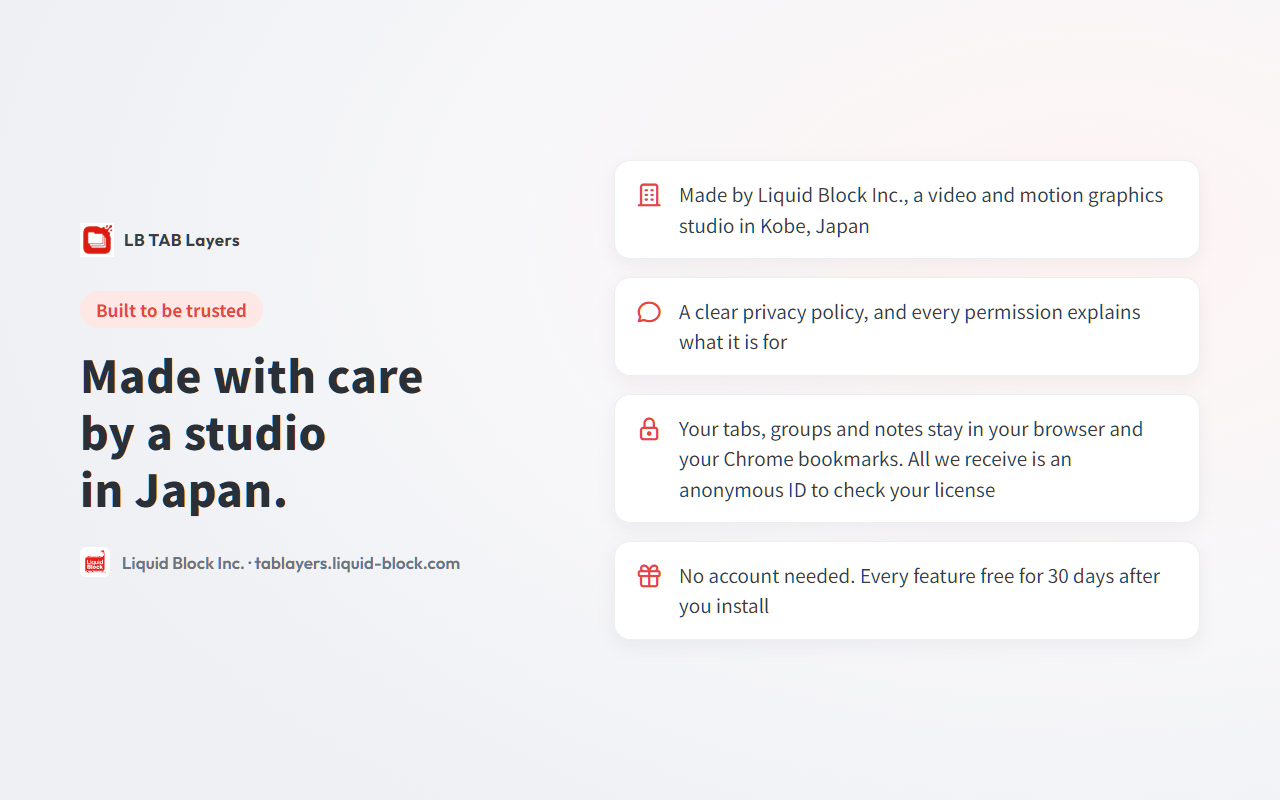
LB TAB Layers is the Chrome extension we built for our own studio work. Press Alt+T to open it in the side panel, and your open tabs and saved bookmarks sit side by side. Save tabs into project groups (stored as Chrome bookmarks, so closing them loses nothing), reopen a whole project with ▶ and close it with ■, keep everyday sites on the pin bar, and leave notes next to pages.
Summary
- Open: More ⋮ → choose Bookmarks, History and so on
- Close: the Close button at the panel’s top right; unpin icons with right-click → Unpin
- Left side: Settings → Appearance → Side panel
- Resize: drag the edge
- One click: Pin to toolbar
Frequently asked questions
Q. How do I open the sidebar in Chrome?
Use the More ⋮ menu. For bookmarks choose Bookmarks and lists → Show all bookmarks; for history choose History → Show history in side panel.
Q. How do I close the Chrome side panel?
Click Close at the top right of the panel. Pinned toolbar icons can be removed with right-click → Unpin.
Q. Can I move the Chrome side panel to the left?
Yes. Go to More ⋮ → Settings → Appearance and choose the side under “Side panel.”
Q. How do I keep bookmarks always one click away?
Open the bookmarks side panel from the menu and select “Pin to toolbar” next to its name. Then the toolbar icon opens it in one click.
See it in action
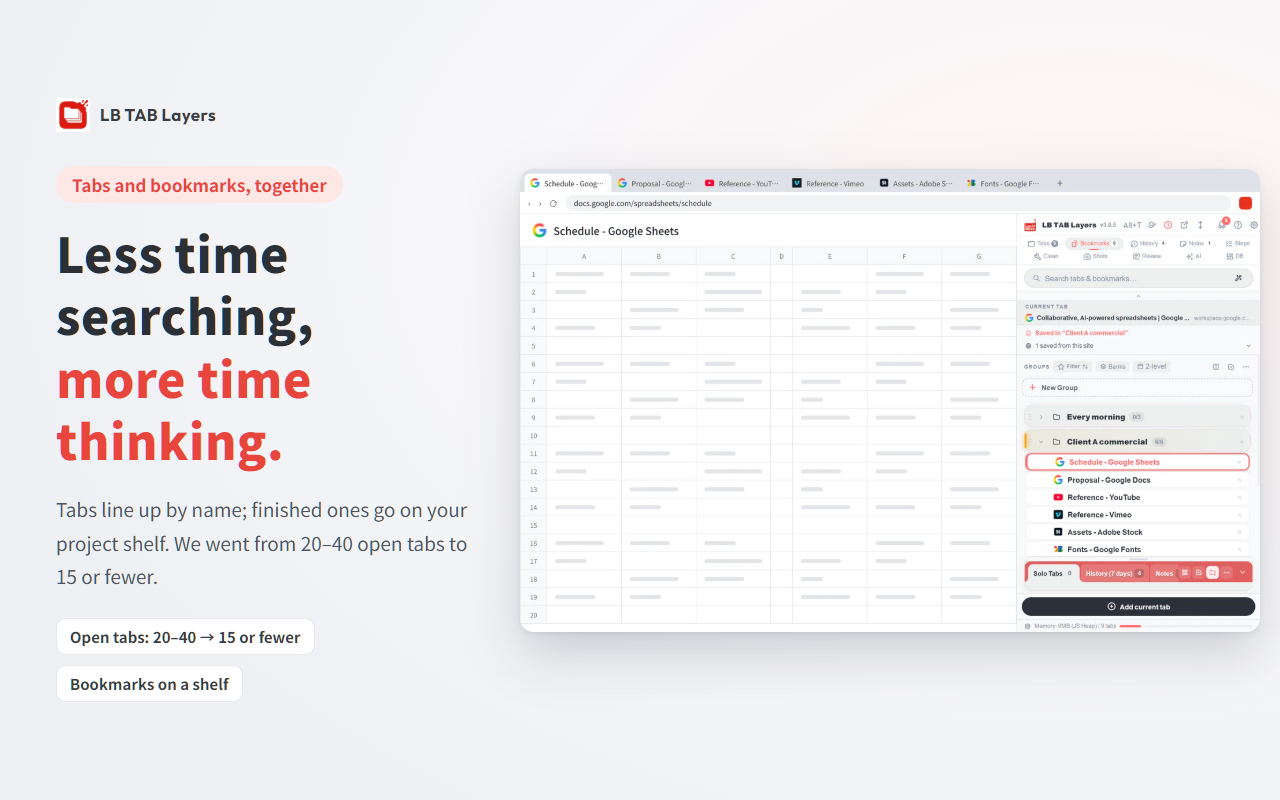
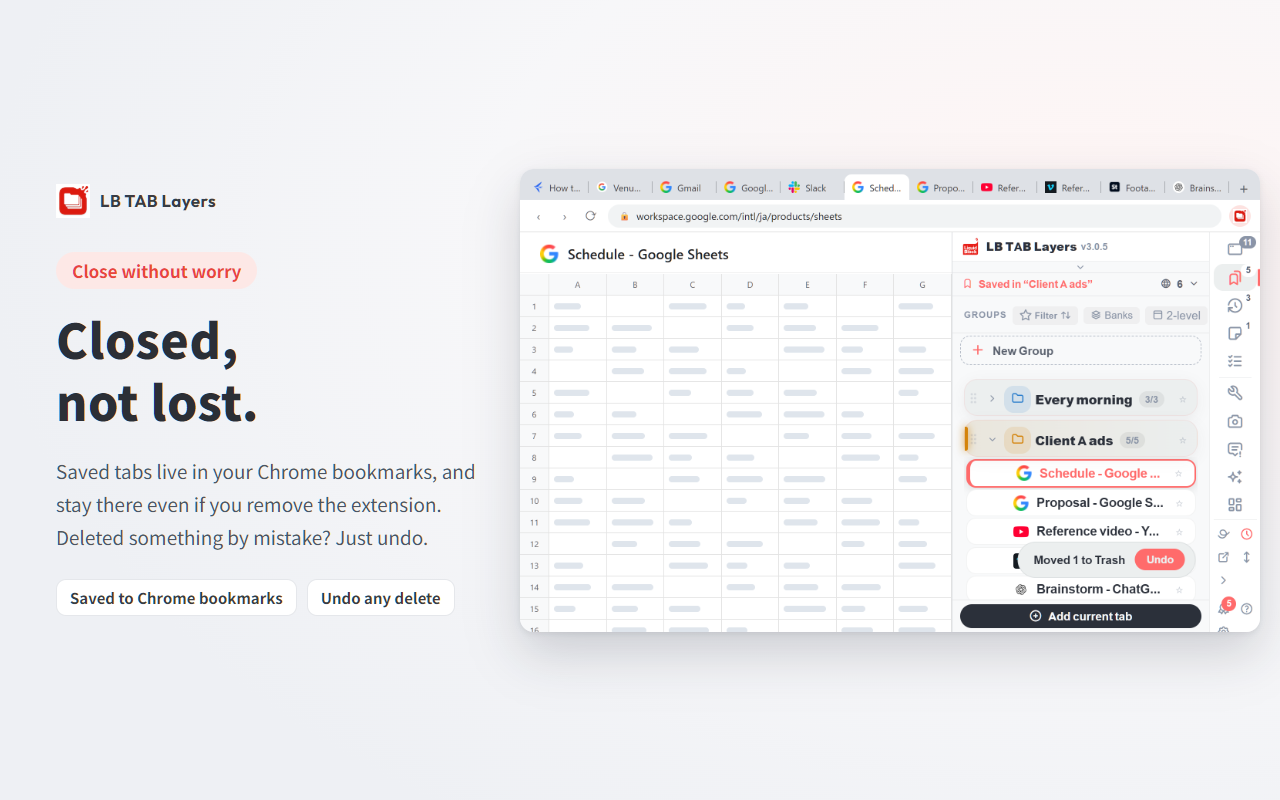
Open tabs and bookmarks in one side panel.
Alt+T opens it. Reopen a whole project with ▶. Nothing is lost when you close tabs. No account.
Add to Chrome — it's free →